Skip to content
View in the app

A better way to browse. Learn more.

Security Installer Community

A full-screen app on your home screen with push notifications, badges and more.

To install this app on iOS and iPadOS
  1. Tap the Share icon in Safari
  2. Scroll the menu and tap Add to Home Screen.
  3. Tap Add in the top-right corner.
To install this app on Android
  1. Tap the 3-dot menu (⋮) in the top-right corner of the browser.
  2. Tap Add to Home screen or Install app.
  3. Confirm by tapping Install.

Alarm panel identification

Featured Replies

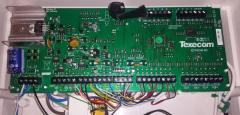
I'm replacing this panel with a galaxy soon, but I was just wondering who makes it and if it was any good?  Putting the make and model number in on the Internet doesn't seem to give me any information on it. Thanks 

DSC_0558.JPG

DSC_0561.JPG

Looks like a rebadged FVE Commander...Forward View Electronics. Not worth keeping.

Regards.


Give the keypad a clean up, new battery, programming manual. You'll have all the mat switches and racals back on in no time...

The lack of information was a good clue to it's modernity and usefulness ;)

So, I've decided to take my work back underground.... to stop it falling into the wrong hands


5 hours ago, FASTCAR said:

Looks like a rebadged FVE Commander...


Rebranded for CEF ?


Never seen one before,

Mr th2.jpg Veritas God

Create an account or sign in to comment

Recently Browsing 0

  • No registered users viewing this page.

Important Information

By using this site, you agree to our Terms of Use.

Account

Navigation

Search

Search

Configure browser push notifications

Chrome (Android)
  1. Tap the lock icon next to the address bar.
  2. Tap Permissions → Notifications.
  3. Adjust your preference.
Chrome (Desktop)
  1. Click the padlock icon in the address bar.
  2. Select Site settings.
  3. Find Notifications and adjust your preference.