_2d2230.png)
_5a42ce.png)

satsuma01
Trade Full Member
-
Joined
-
Last visited
Everything posted by satsuma01
-
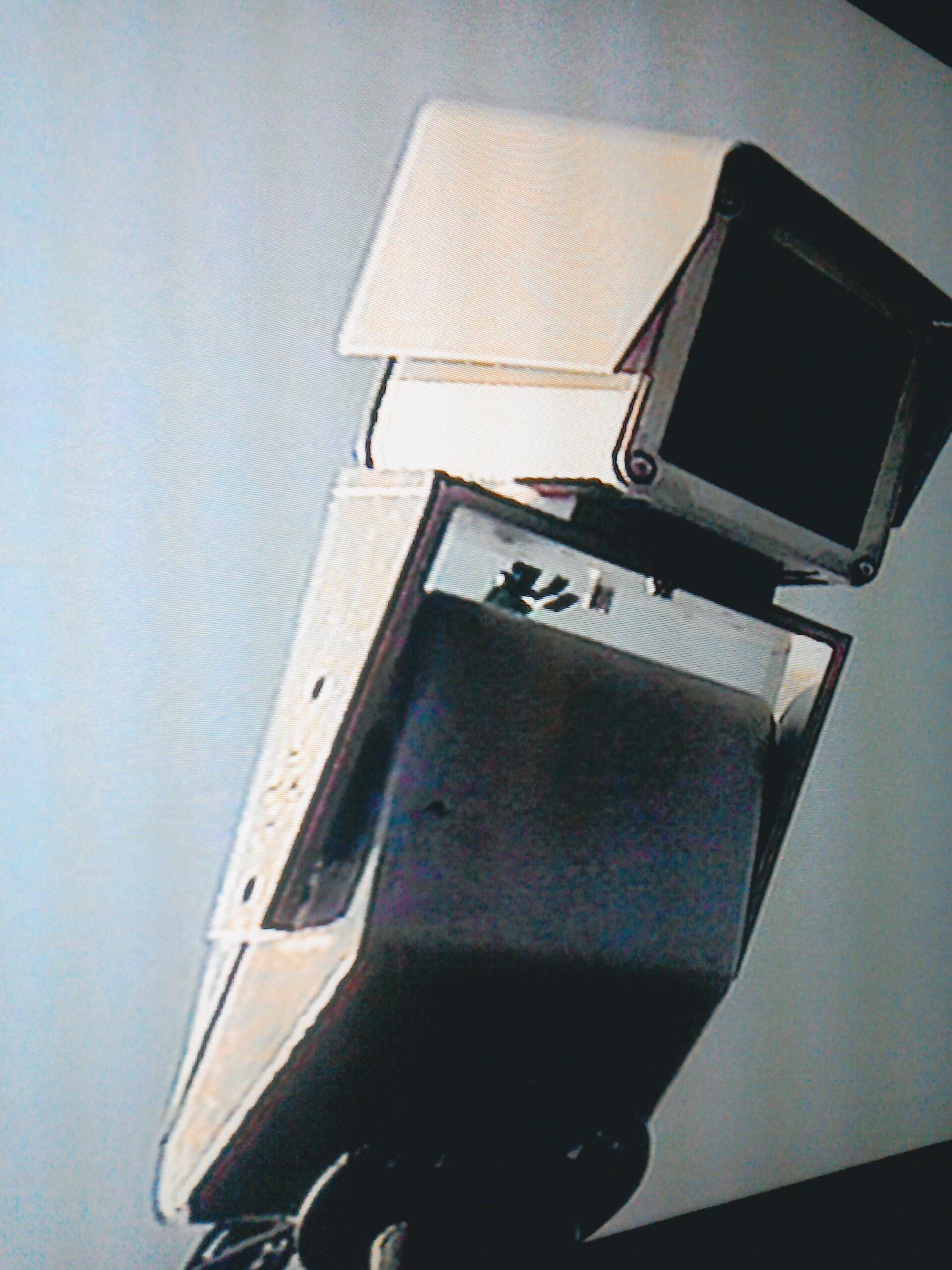
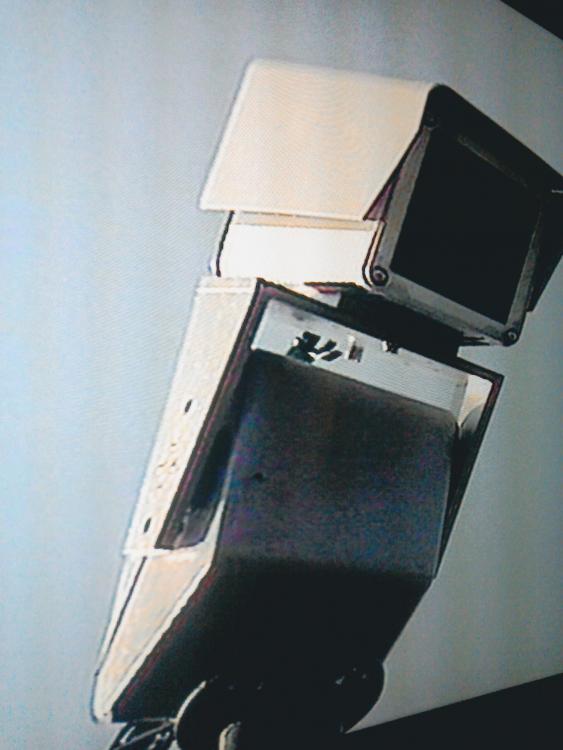
I think aissecur is correct it's a old dennard motor well done and many thanks thismwas amoicture from a programme in the 1990's and I was curious what unit they had used
-
Does anyone recognise the motor for the ptz in the picture which manufacturer made it many thanks
-
What app on mobiles does the qvis range use and how stable I'd the app to the DVRs
-
-
What about changing the fixings for the mag locks.to the frames to security screw type fixings with none standard heads or needing.the proper tool.for.the screw or.bolt removal
-
there should be a key left by the unit or with you from the owners, if not pm me your address and ill send one in the post, a small shaped keyhole on the unit is where the key fit and you just twist the key to push the trigger button back to break the contact.
-
 what is that with all those loop throughs coming off back.
 -
 how the heck does a pole bend like that.
 -
 roof trusses shouldnt be drilled due to their sizes not being large enough they are designed to have no drilling lor damage done just to support the ceiling boards, they arnt meant to be drilled and weakened.
 -
-
 the camera that took the fox image i have 4 of these of the property and they work really well so far!
 -
 just to show the quality of the ir and camera from the ir speed dome bearing in kind its virtually pitch black outside with no street lights local to driveway.
 -
Texecom Veritas Comapact/R8/8 Install Manual Pre2000 Panel
-
Installation Manual for Pyronix Sterling 10 LCD version
-
Sterling 10 LED Installation Manual Pyronix
-
 Honeywell Galaxy CLassic 8-512 Installation Manual
 -
User Manual For Texecom R8 Veritas Alarm System
-
-
-
-
Veritas Compact Installation Manual
-
5 installation / engineer manuals for j2000 range of jpeg cctv dvrs / dvrmonitor
-
 after i called back there today to tidy that rubbish up this is the outcome of my visit.
 -
thats what i thought when i poked my head into the loft!
-
this is the system i came across whilst adding an extra 2 cameras and changing 2 outdoor cameras on a domestic, the equipment left like this in loft space, very untidy, will be tidying up tommorrow once the rest of the power supplies and cable arrives on site.
© © The Security Installer