Skip to content
View in the app

A better way to browse. Learn more.

Security Installer Community

A full-screen app on your home screen with push notifications, badges and more.

To install this app on iOS and iPadOS
  1. Tap the Share icon in Safari
  2. Scroll the menu and tap Add to Home Screen.
  3. Tap Add in the top-right corner.
To install this app on Android
  1. Tap the 3-dot menu (⋮) in the top-right corner of the browser.
  2. Tap Add to Home screen or Install app.
  3. Confirm by tapping Install.

Galaxy Classic Links And Autoset

Featured Replies

Evening, few questions for you all

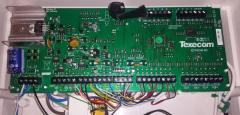
I have a galaxy classic panel installed for an external building at home. It has auto set enabled for mon-fri mornings. Sometimes I don't need autoset so how can I turn autoset off without having to log into engineers everytime? Also, how can I unprogramme a link? I have a strobe on an o/p programmed as strobe but I also have a link programmed so the strobe pulses in autoset pre warning but it doesn't stop pulsing afterwards when the system is set. Hope to have a reply soon, thanks.

".....It has auto set enabled for mon-fri mornings. Sometimes I don't need autoset so how can I turn autoset off without having to log into engineers everytime?..."


I can't find anything in the operator instructions which allows you to turn autoset off when it has been pre-programmed.


"....how can I unprogramme a link?..." 


Re-program all links... page 98 ?


"....strobe pulses in autoset pre warning but it doesn't stop pulsing afterwards when the system is set..."


de-program the link.. do you really need a pulsed strobe in this setup ?

Archived

This topic is now archived and is closed to further replies.

Recently Browsing 0

  • No registered users viewing this page.

Important Information

By using this site, you agree to our Terms of Use.

Account

Navigation

Search

Search

Configure browser push notifications

Chrome (Android)
  1. Tap the lock icon next to the address bar.
  2. Tap Permissions → Notifications.
  3. Adjust your preference.
Chrome (Desktop)
  1. Click the padlock icon in the address bar.
  2. Select Site settings.
  3. Find Notifications and adjust your preference.