


_2d2230.png)
_5a42ce.png)

jmeader43
Member
-
Joined
-
Last visited
Everything posted by jmeader43
-
Yes I have some resistors to wire it up for the 4K7 2K2 Texecom standard thanks ☺️
-
An update so far: 1. Changed Beam from NO to NC 2. Wired Beam into Zone 8 3. Zone 8 changed Chime to 3 times to distinguish between other doors opening on 1 Chime 4. The old panel appears to be a Scantronic 5. I believe the old panel can support 2x 16 ohm speakers. The Texecom can only support 1x 16 ohm or 2x 8 ohm and I may not be able to use an 8 ohm speaker where the one located further away is placed as it may not work 6. Texecom recommended I get a Sounder and connect to Digi Output so give some different options based on the Sounder’s capabilities 7. I’ve deleted the FB post as I don’t have time to be drawn into a firefight with people that enjoy putting others down. They fail to mention all the other work I’ve done and just because I’m discussing some options doesn’t justify being told to quit what I’m doing and stick to IT 8. So things are going well, this job I’m doing is actually for someone I know so it doesn’t matter how long it takes as they appreciate I’m helping them and saving labour cost So it looks like I need to see what Digi Output options I can use with a Sounder to mimic a long deep speaker tone like what they had before going through one of the existing 16 ohm speakers Texecom have said I can’t use this on the Digi Outputs and it has to be Sounder If anyone has any suggestions for a good Sounder please let me know and thanks for all the help so far
-
Yes you’re right, I may actually just swap the wire over and keep it as NC. Makes me wonder why it was set as NO but I can test both and see what happens Yes I would prefer to wire the Optex beam directly into the Texecom Elite 24 zone so I am going to try this and see if it can monitor the zone as a N/O circuit. The Optex beam was wired Double Pole but I may be able to change it to EOL too
-
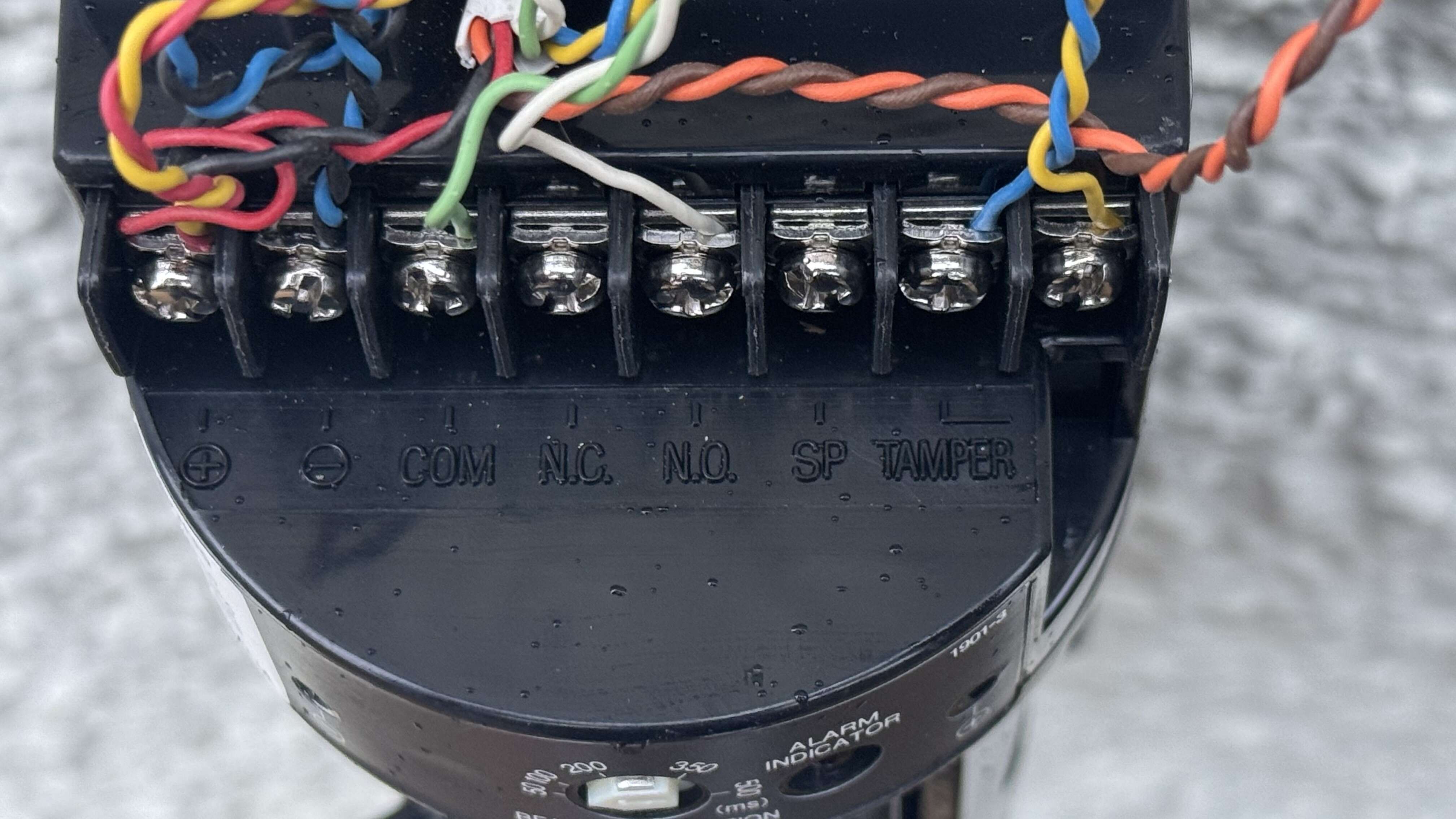
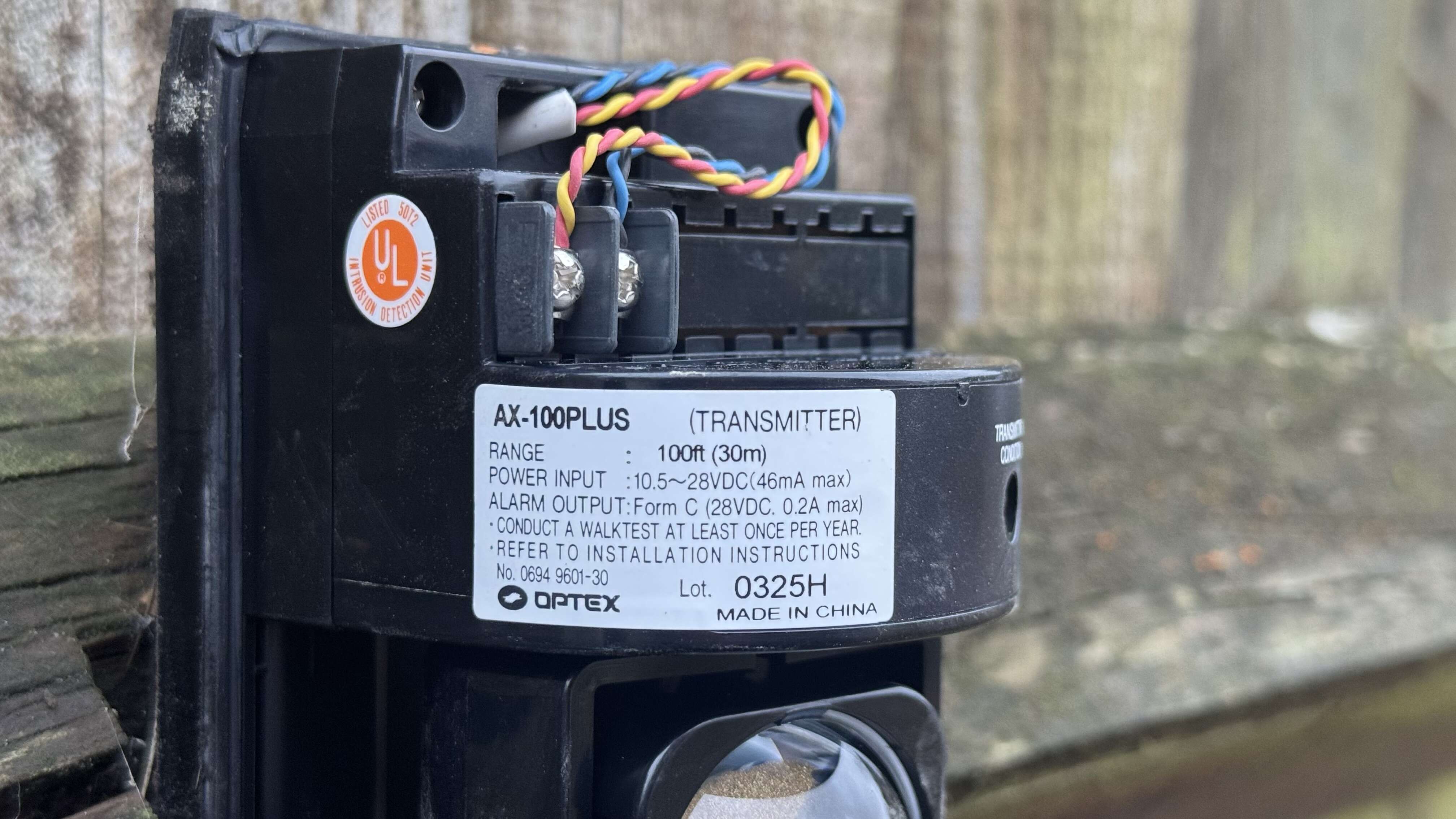
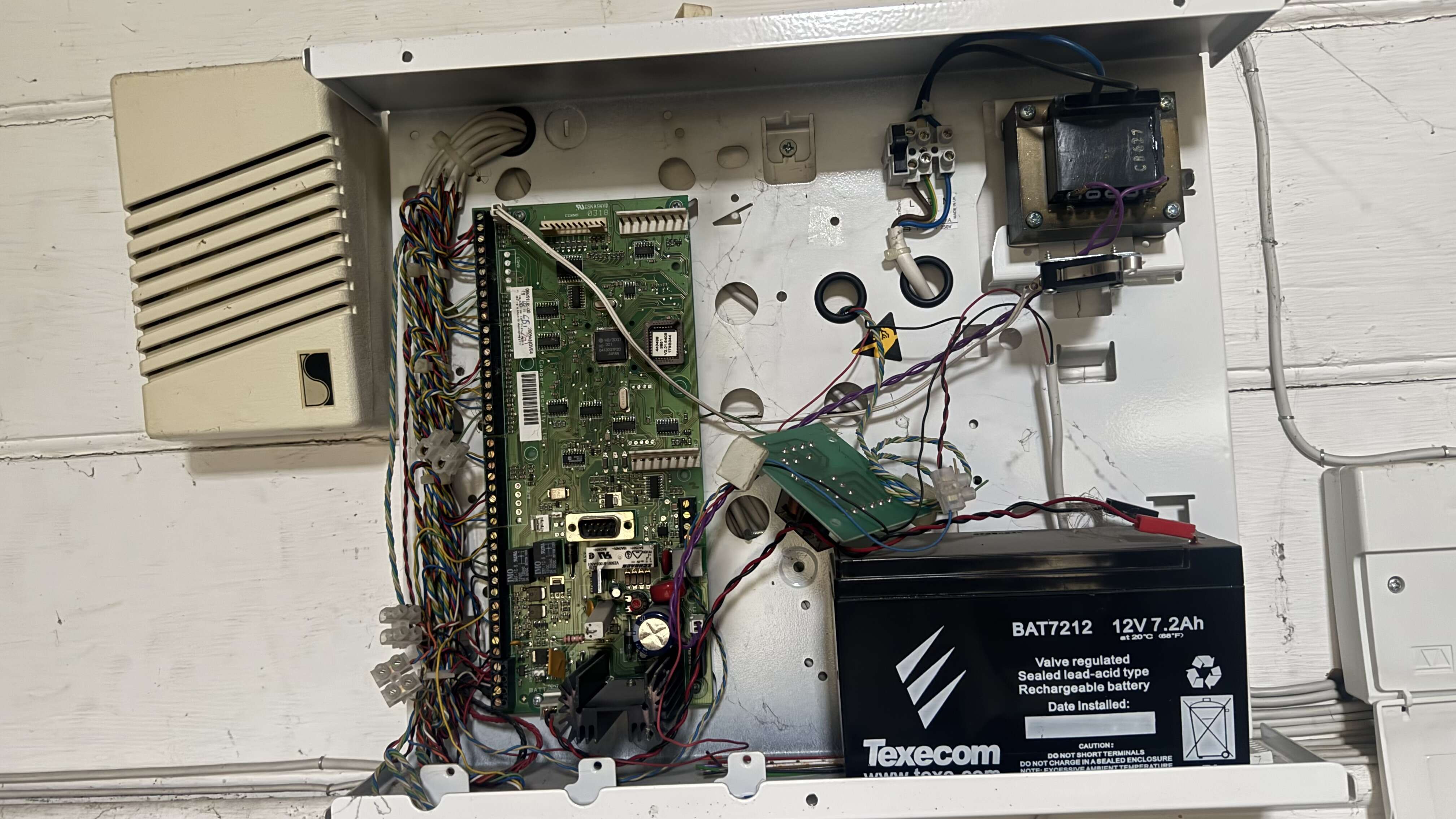
Thanks I think I have solved the issue. By wiring the beams as NO into the panel I can enable the Chime on a zone. I believe the third party relay was for a floodlight which is no longer there. I will upload the photos here as well
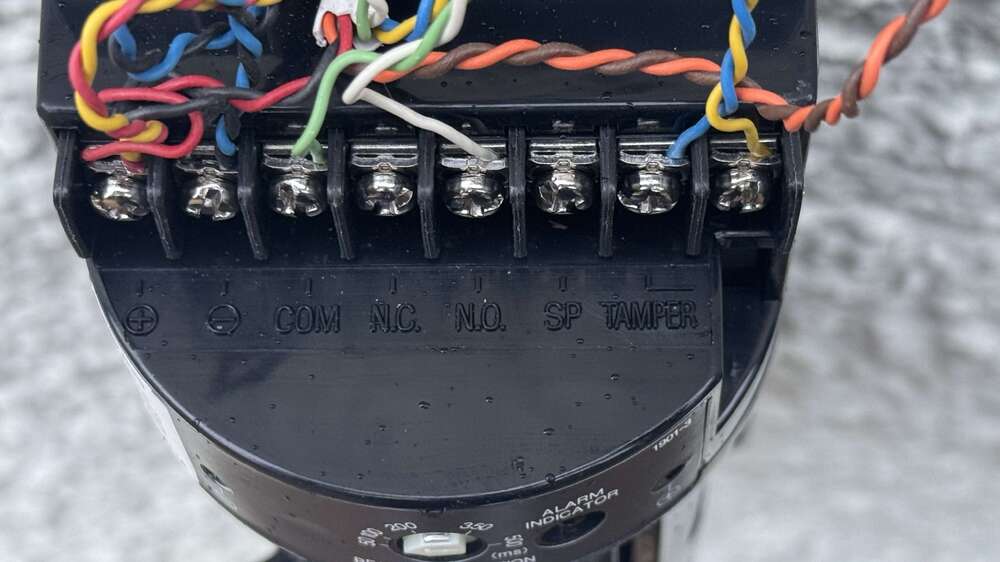
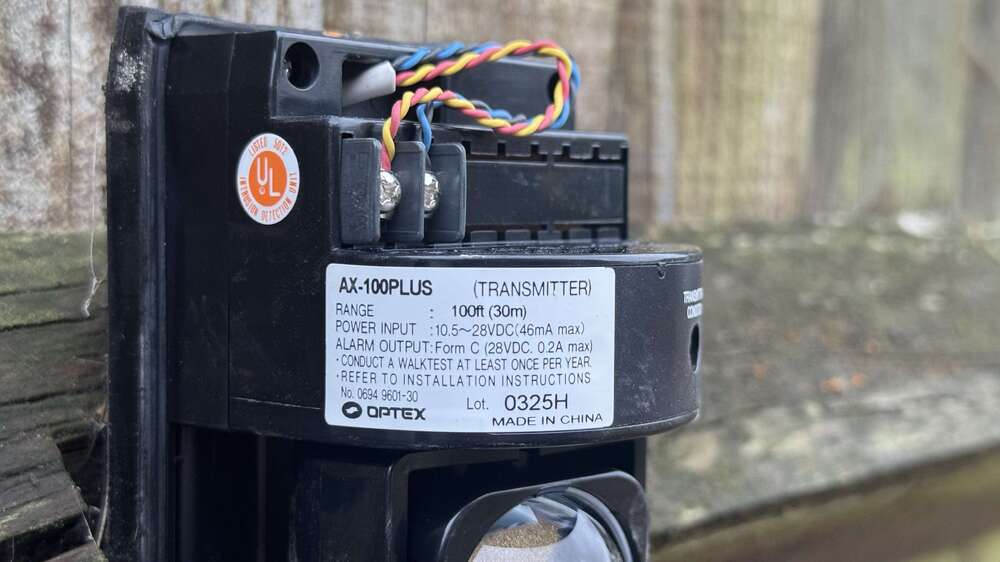
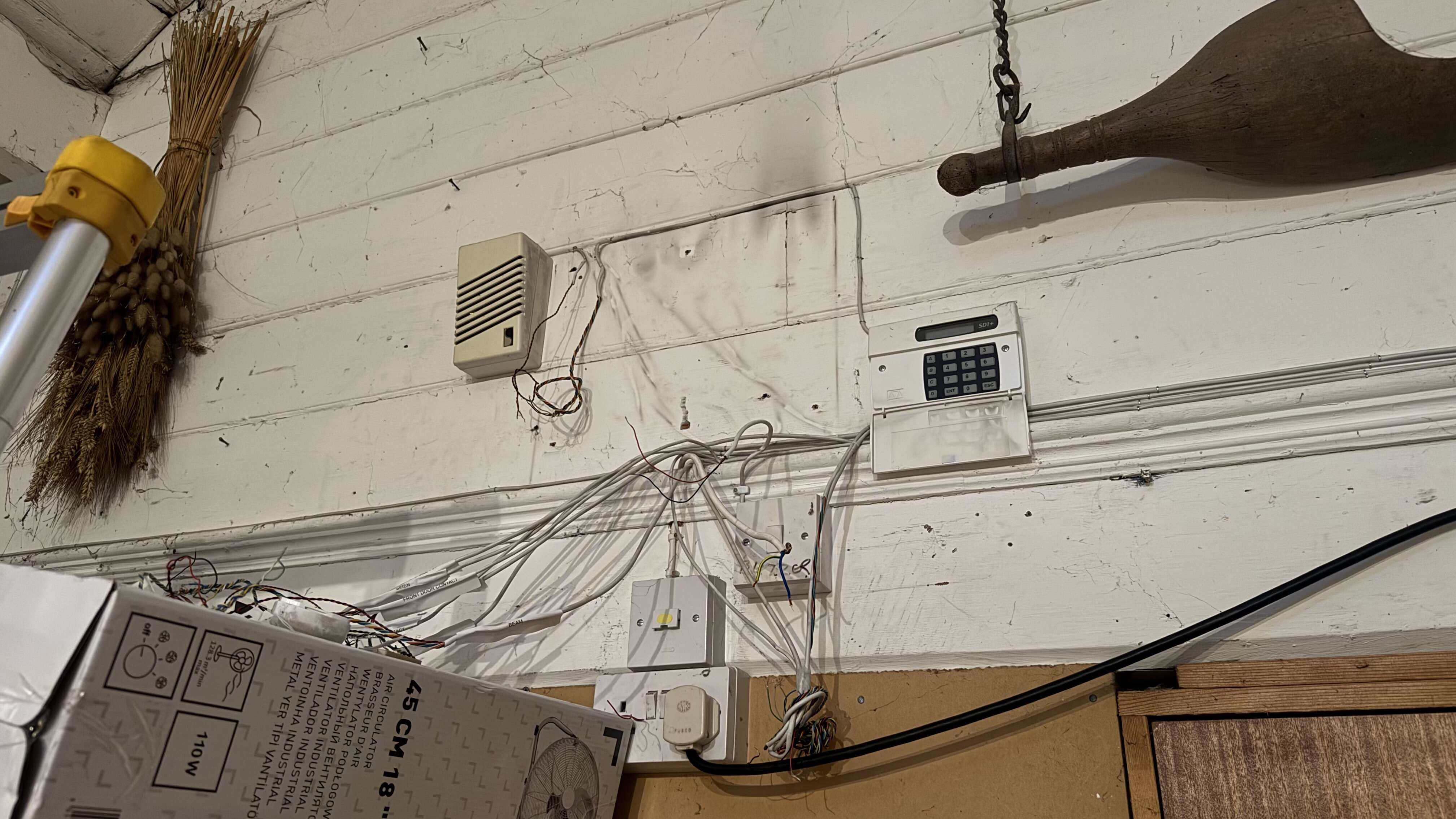
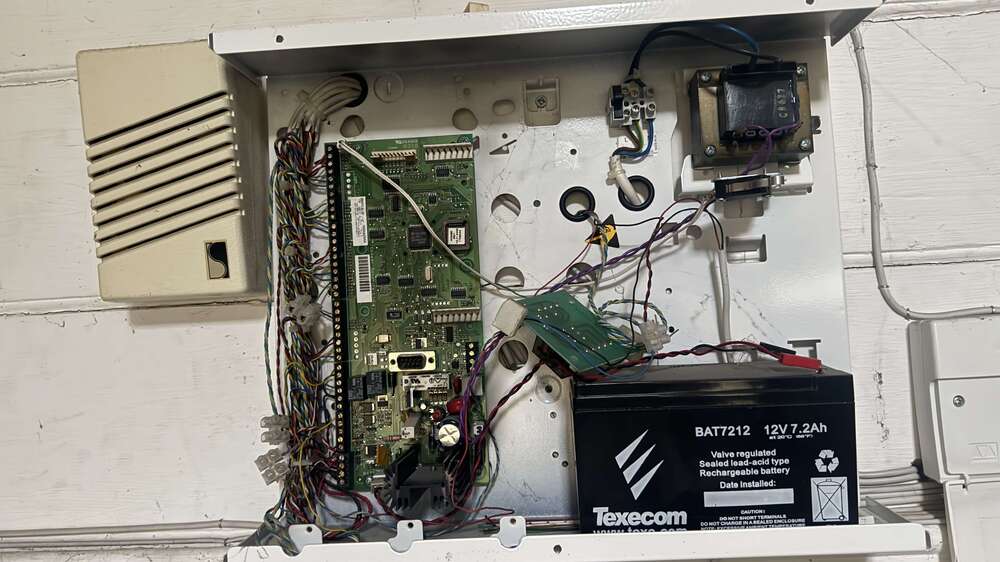 Yes I would prefer to wire the Optex beam directly into the Texecom Elite 24 zone so I am going to try this and see if it can monitor the zone as a N/O circuit. The Optex beam was wired Double Pole but I may be able to change it to EOL tooThis sounds promising and I am wondering if the Premier Elite 24 panel can simply monitor the zone as a N/O circuit. I could also look at wiring the Alarm and Tamper on the Optex beam as EOL rather than Double PoleI have a couple of these driveway sensors that work fine and I’ve just had to cut all the wiring out to replace the old unbranded panel with a Texecom Premier Elite 24 The model of the driveway beams is Optex AX-100PLUS I would like to have the driveway sensors make a noise on the speaker next to the alarm panel like before I cut it all out I was unable to trace the wiring without cutting it out unfortunately There is a third party relay on a PCB which I have still got and I think it was wired to the driveway beams to convert the n/o to a n/c for the alarm panel to monitor I also have a new Shelly Plus 1 relay I could use if it achieved the outcomeI’ve fitted a new Eaton branded Scantronic 9448+ wired panel that a customer supplied to replace the same old one that was 20+ years in service I’ve found the outdoor siren isn’t working at all and wondered if I can use any brand of wired siren or would this panel only work with selected compatible models?Does anyone know how to test one of these? It’s brand new with a working SIM card from a previously same model but the SIM card holder was broken I’ve powered it up and it’s got mobile signal with a slow flashing red led and I’ve connected a 12V pc case fan into the following for testing the relay: COM: Black negative wire to fan NC: Red positive wire to fan This was my thinking to prove that it can work with the existing magnetic gate I have the instructions which I will attach on here. It just doesn’t seem to respond to a request to turn the relay on so I think I need fo add my number as the authorised number or make it respond to any number using the relevant commands below Turn relay on 1234#ON# Set authorised number (this is the one from the manual and looks like an extra digit in error?) 1234#TEL0044 13500001111#01 Setup allow all call in numbers to access it 1234#AA#
Important Information
By using this site, you agree to our Terms of Use.