_2d2230.png)
_5a42ce.png)

jmeader43
Member
-
Joined
-
Last visited
-
Hi Jeremy thank you for this detailed reply I am going to look into it now
-
It also seems the current intercom is not a Control4 branded intercom and is actually a 2N IP Verso (without camera) model
-
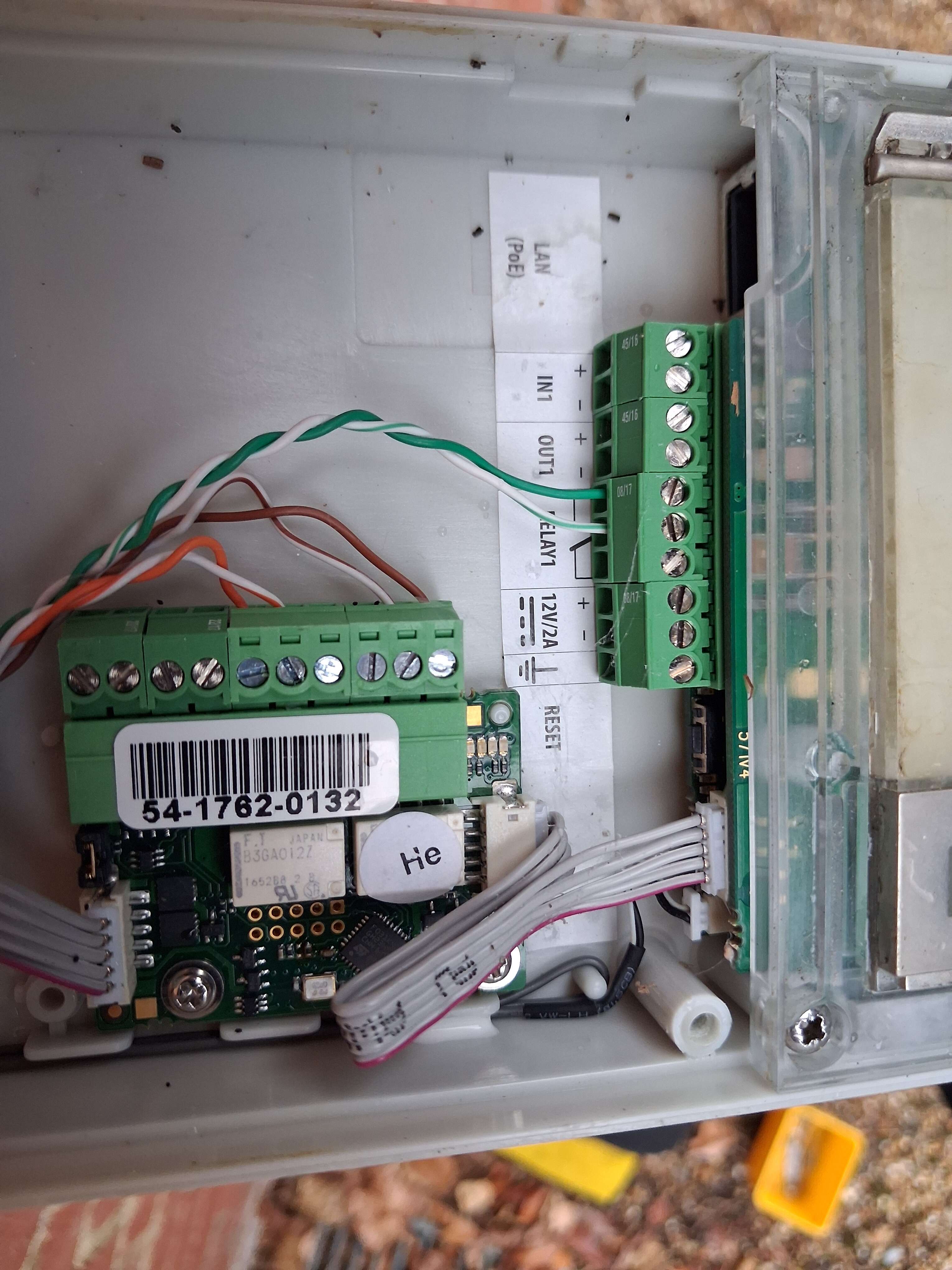
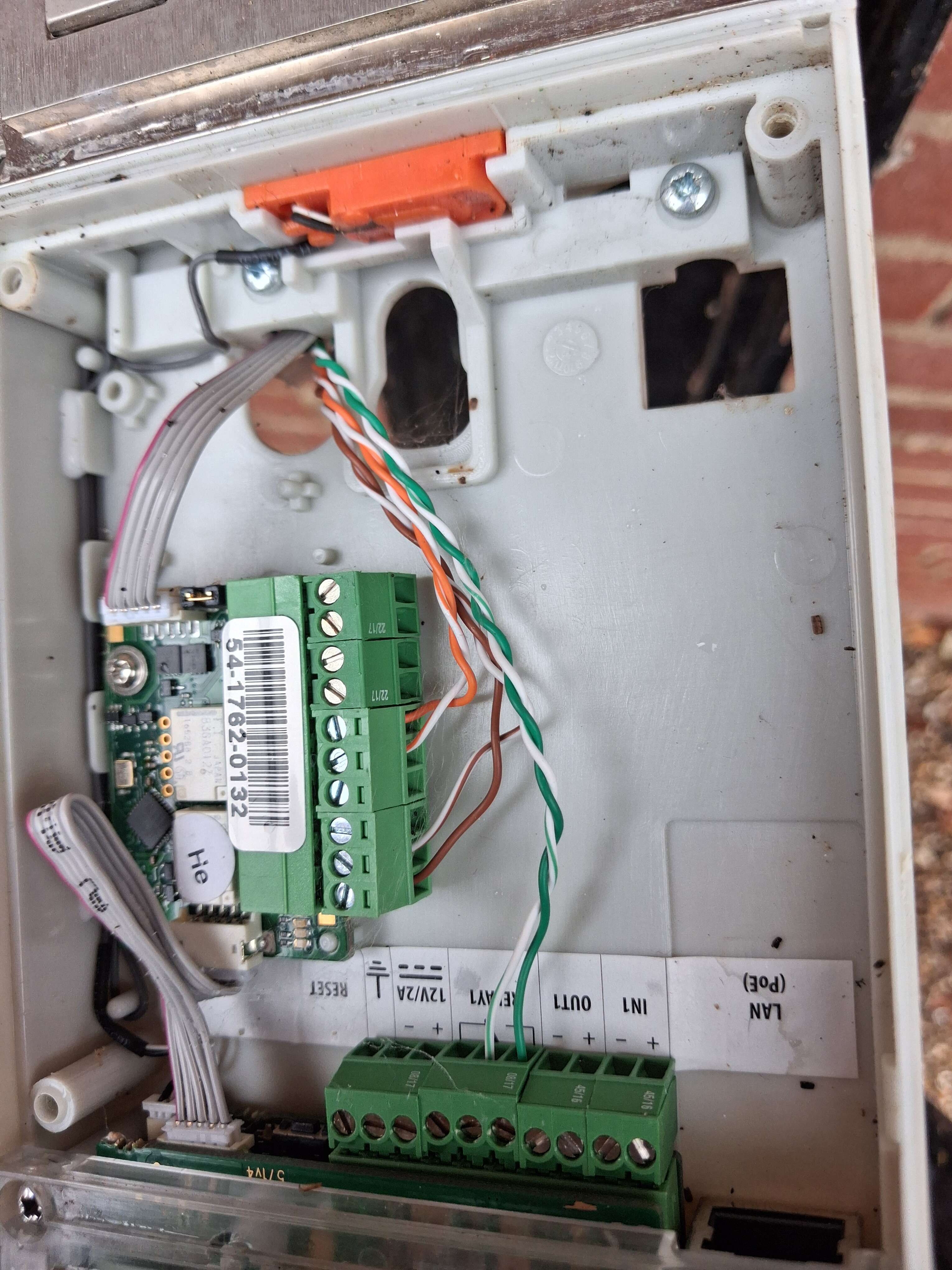
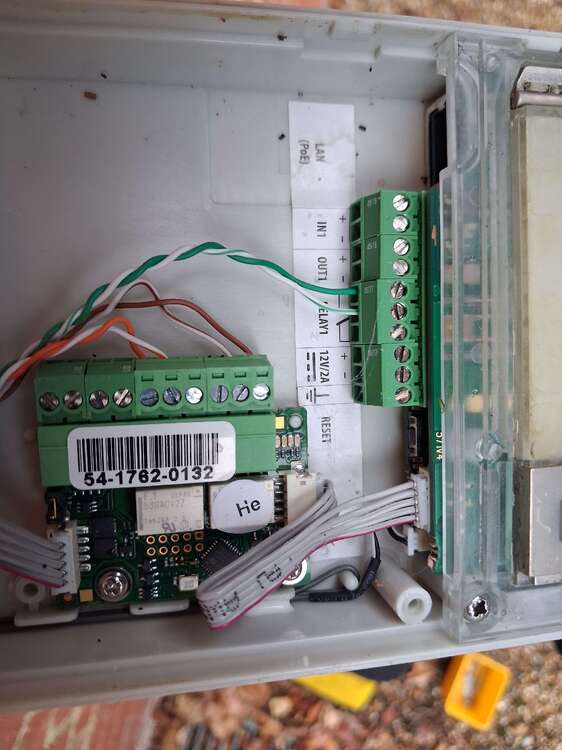
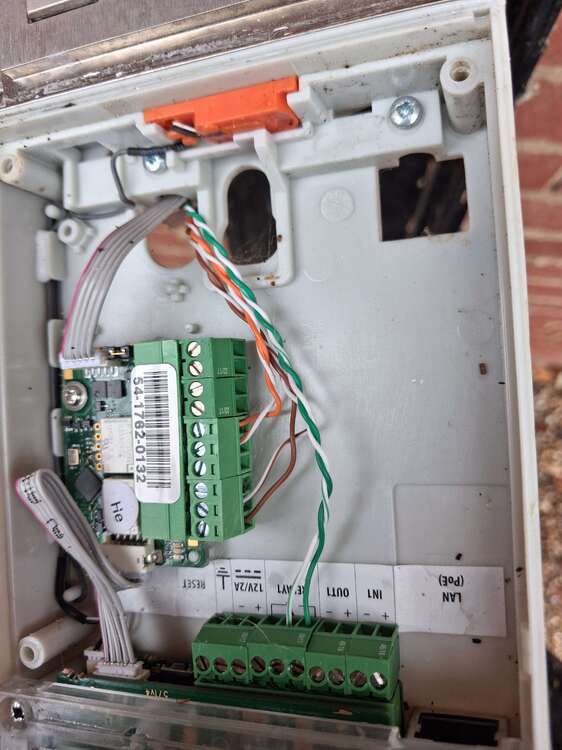
It's possible I only need the green pair that is connected to the relay terminals when connecting the Fanvil i66 The 2N IP Verso I/O Module (Part No. 9155034) expands compatible intercoms with two logical inputs and two relay outputs for sensor integration and external device control.
-
Hi James I am replacing the Control4 intercom with a Fanvil i66 The issue I am dealing with is understanding which of the 3 pairs in the intercom need to go into the new intercom
-
I have tested the old control4 intercom and the orange pair are the fob. Unsure what the brown pair are as the gate works when that connector block is unplugged
-
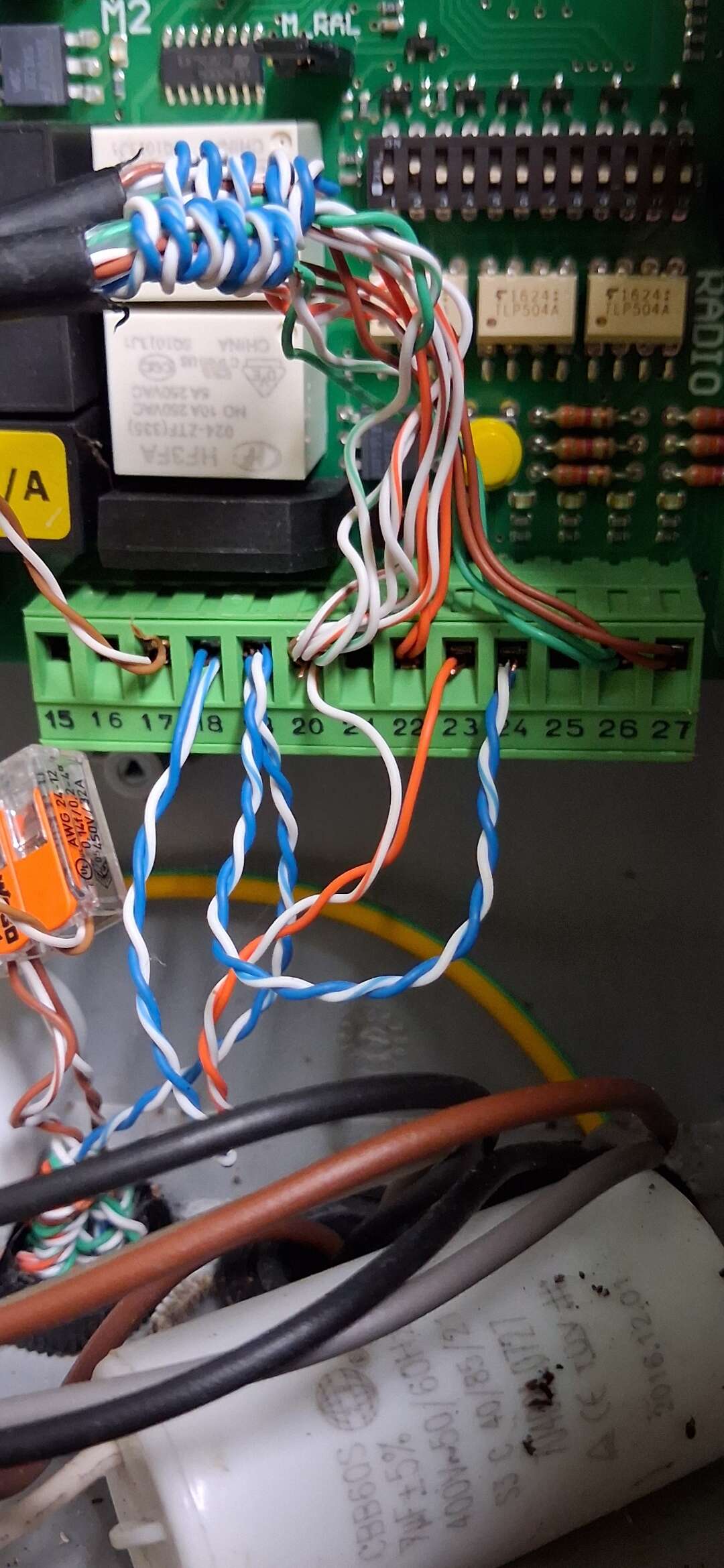
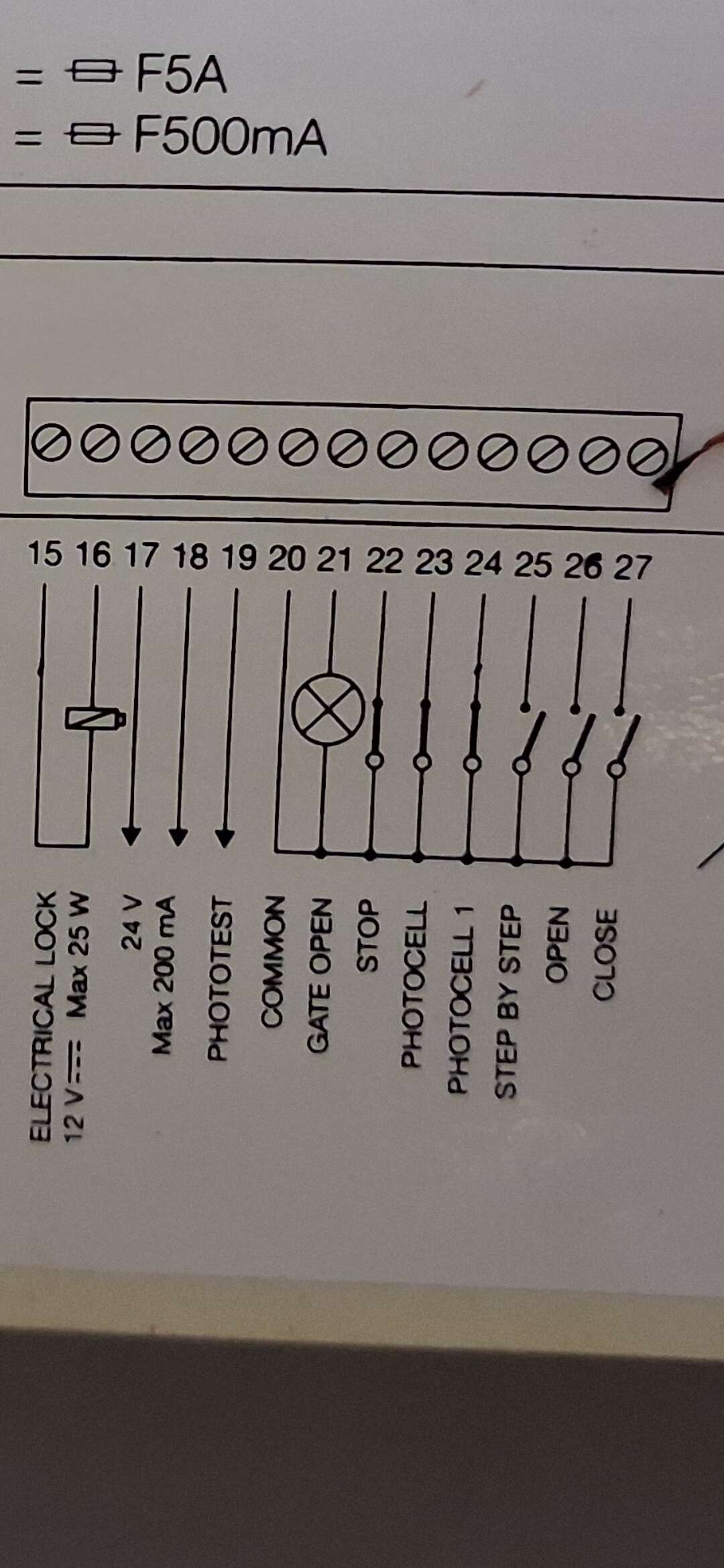
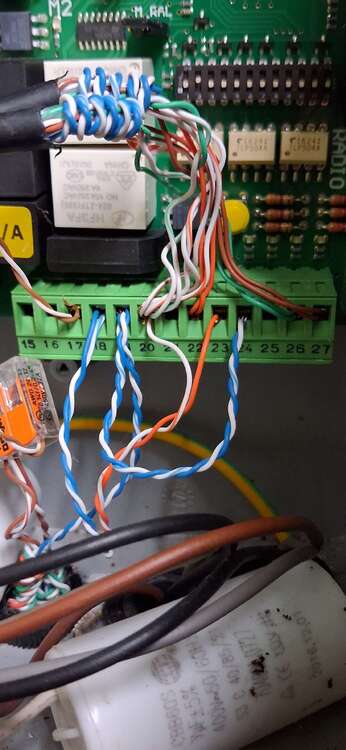
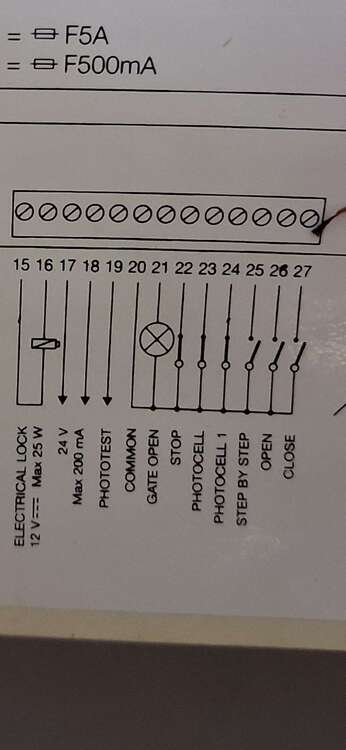
Message from Nice tech support goes against my green pair theory Hi James, From your picture, none of the greens are from the Common on the A60 control unit, if you reference the diagram below I sent you, you have multiple commons in terminal 20, I would assume for the photocells and the intercom unit. (you will need to verify) So from the picture, green is for a NO of your choice and programming of the Fanvil, and you will have to cable trace which common you have free in terminal 20 of the A60 that lead back to the intercom unit to be wired into the relevant Common.
-
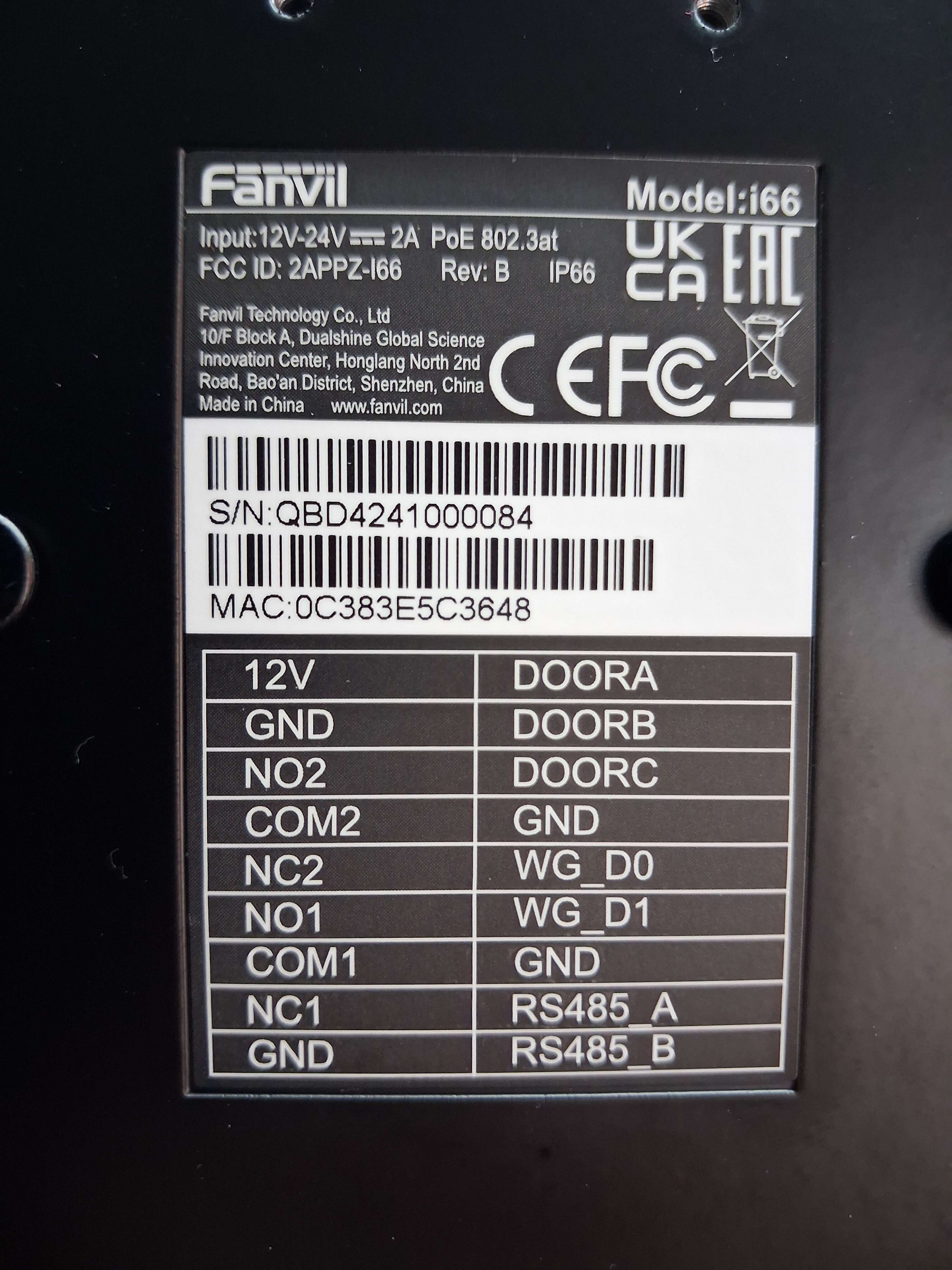
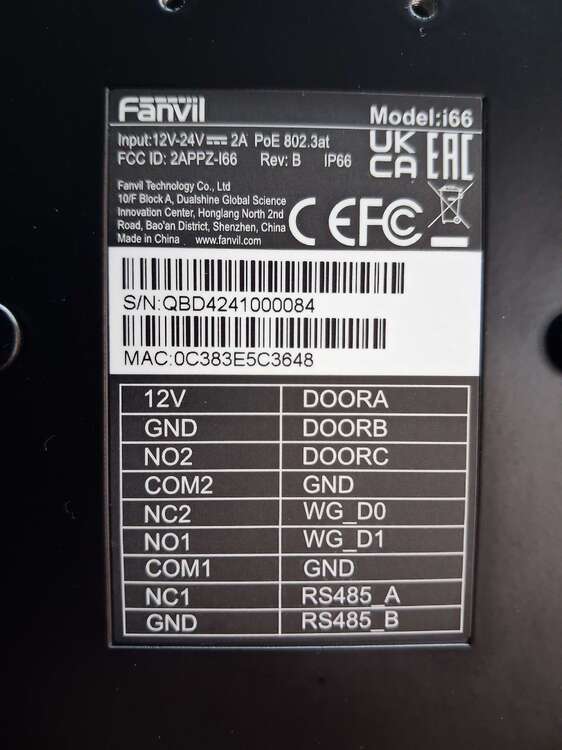
I am expecting the green pair which was connected to the relay terminals to be connecting into the NO1 and COM1
-
Can you help me with the install of a Fanvil i66 please. I have removed a Control4 PoE intercom and there is 3 pairs out of 4 connected to it O/OW G/GW BR/BW The blue pair at the intercom end was not in use There is a pair of photocells and a remote fob
-
I now see it's part of the download I got from texe.com yesterday thanks, I was worried it would corrupt the panel running V3 to V6 but it appears it will not Premier-Elite-V6_06_02-Firmware.exe
-
I have the flasher interface and the usb-com cable and did have the flasher software but I can't find it and it's not available from the Texecom website when I sign in with my installer account
-
I have an Elite 48 running legacy V3.02 firmware that I am upgrading for SmartCom support. My local Wintex structure does not contain the old flashing tools. Can anyone pPlease provide a direct download link or file transfer for the legacy standalone Premier Elite Flasher application along with the V5 intermediate firmware binary? I can request it tomorrow from Texecom but today is my day off and I was hoping to get it done if possible!
-
Sounds like it’s easier if I just get my long set of ladders which are on another job and I’ll just go carefully to access it
-
I’m not there yet but it’s just a fully working siren on the wall and the old panel has been removed for a Pyronix Euro 76 6 core cable total colours red black blue yellow green white
-
I have an odyssey 1 on a very hard to reach area due to building work that took place years after the original install At the panel end I have a 6 core cable labelled as SAB Is there any safe way for me to continuity test this without damaging the siren without accessing it on ladders?
-