_2d2230.png)
_5a42ce.png)

JonSdl
Newbie
-
Joined
-
Last visited
-
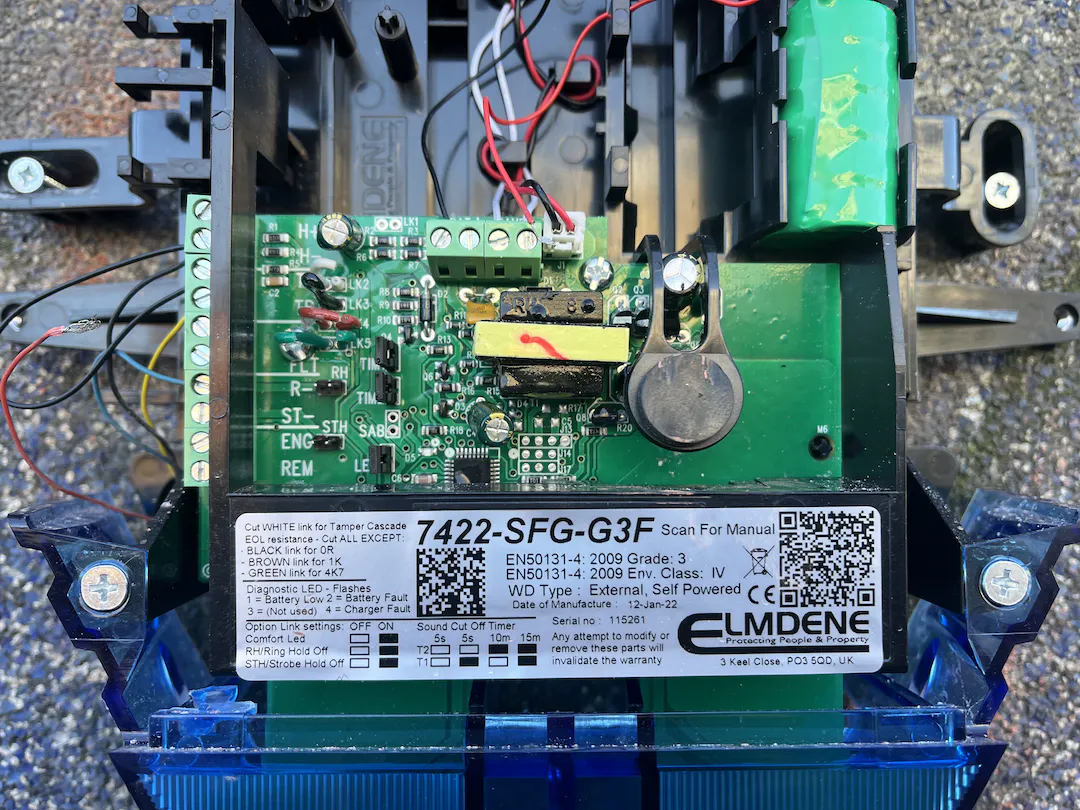
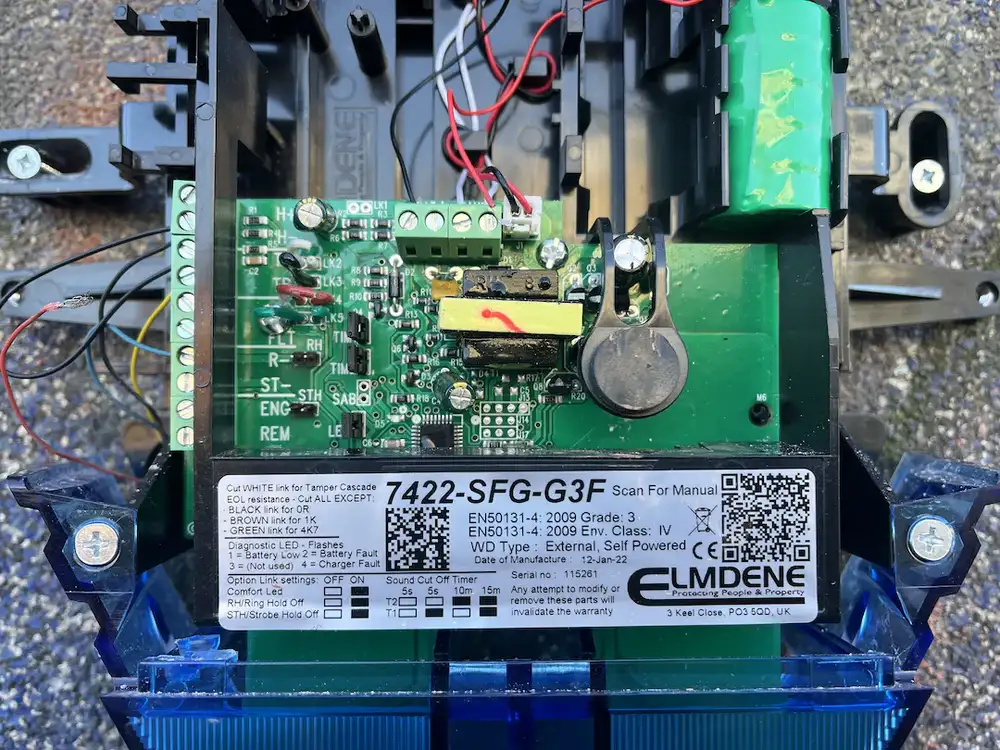
Hi all, I have a Galaxy 60 with an ADT bell box that was presumed faulty as it would not trigger on an alarm state. I purchased another ADT box which is a newer model. When swapped over the new bell box will not stop ringing. Connections are:- H+ to 12v H- to 0v TS to H- TR to T R- to Bell I have tried cutting/replacing the coloured links for 0 ohm and 1k but fault is the same. Bell terminal is putting out 7v with 0v in alarm state. Voice dialler is also working fine. The panel gives 1004 Aux Tamp error. (Battery and H+ were connected when testing) Any help is much appreciated. Thank you.
-
Hi all, I have some experience with Texecom but none with Honeywell and have just inherited a Galaxy system in a property that I have taken over. The alarm seems to be stuck in engineer mode. The error shown when trying to exit engineer mode is RIO 102 AC FAIL. There does seem to be an expansion panel at the other side of the building which I believe may be RIO 102? I was told by the previous tenant that I can still use the system in engineer mode and it does seem to arm ok but when I try to trigger the alarm it just beeps with the entry noise indefinitely and the siren will not sound. The display will then show that the alarm was triggered. Any help is appreciated. Thank you.