

Skip to content
View in the app

A better way to browse. Learn more.

Security Installer Community

A full-screen app on your home screen with push notifications, badges and more.

To install this app on iOS and iPadOS
  1. Tap the Share icon in Safari
  2. Scroll the menu and tap Add to Home Screen.
  3. Tap Add in the top-right corner.
To install this app on Android
  1. Tap the 3-dot menu (⋮) in the top-right corner of the browser.
  2. Tap Add to Home screen or Install app.
  3. Confirm by tapping Install.

john01

Member
  • Joined

  • Last visited

  1. john01 replied to john01's topic in !!..DIY Installers..!!
    Thanks for your advice. The alarm is working ok at the moment. So hopefully it's nothing too important.
  2. john01 replied to john01's topic in !!..DIY Installers..!!
    I can't see the other ends, they disappear behind the panel.
  3. john01 replied to john01's topic in !!..DIY Installers..!!
    Sorry, thanks for your patience. Try this...
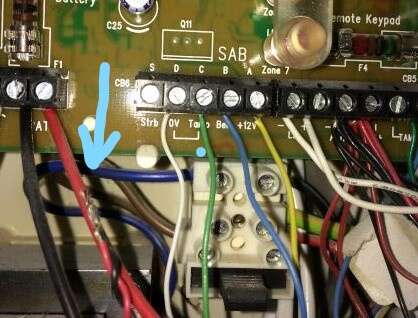
  4. john01 replied to john01's topic in !!..DIY Installers..!!
    I wasn't able to see behind all the wires unfortunately.
  5. john01 replied to john01's topic in !!..DIY Installers..!!
    Yes sorry I meant to say negative on the battery. Can you see this picture?
  6. john01 replied to john01's topic in !!..DIY Installers..!!
    Yes Thanks Peter, I saw that empty terminal and did wonder but the terminal screw is very undone as if there never was anything in there!
  7. john01 joined the community
  8. john01 posted a topic in !!..DIY Installers..!!
    Advice please. I was changing the battery on the Veritas 8. When I pulled out the earth lead from the old battery, The alarm went off (mains power was off). I put power back on and reset alarm to kill the external siren. I then noticed that the black and red wire wound together at the bottom left of picture was loose. Don't know whether it never was in a terminal or i knocked it out when i pulled the battery wire. Does anyone know where this wire goes please? Thanks in advance john

Important Information

By using this site, you agree to our Terms of Use.

Account

Navigation

Search

Search

Configure browser push notifications

Chrome (Android)
  1. Tap the lock icon next to the address bar.
  2. Tap Permissions → Notifications.
  3. Adjust your preference.
Chrome (Desktop)
  1. Click the padlock icon in the address bar.
  2. Select Site settings.
  3. Find Notifications and adjust your preference.