_2d2230.png)
_5a42ce.png)

BrianClark
Member
-
Joined
-
Last visited
Everything posted by BrianClark
-
Looks like we're up to V5.04.01 at the moment. I've got a SmartCom unit and it seems you can upgrade firmware on the board and the SmartCom directly from Texecom Cloud - which is handy. Only issues I get it updating the panel FW takes about half an hour if you're on site. Updating the SmartCom takes about 5, so I'm not too bothered about that. But from now on I'm just going to flash each panel prior to visiting site and save myself the time. Long as you have your serial lead (the one you use for Wintex) and firmware flasher like ebay 333727230395, it saves all that hassle on installs. Takes about 3-4 minutes if you do it this way :)
-
Yeah, sleep is for woosies anyway lol.
-
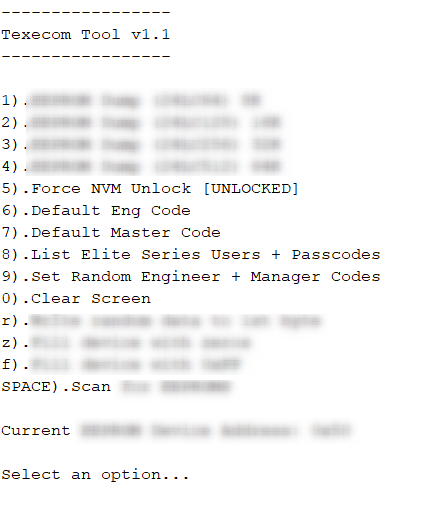
Option 9 to set random passwords was kind of for testing. Just so I had something "non default" to prove that the "back to defaults" was doing something. Although I guess it gets past that problem where every company uses the same engineer code malarkey... My sympathies to Al-Yeti, I also work with Scantronic panels lol. Damn things have been added to so many times over the years that you're jumping back and forth looking for the correct code sequences. Still, makes life interesting - and at least these can be defaulted easily!
-
Didn't realise this was so active ! Some of you guys are on after midnight, thats a bit hard core lol
-
Had a locked panel recently and just couldn't get into it to default it. So ended up making a utility to do just that. Annoying when a company locks a panel then decides to go bust lol.