

Skip to content
View in the app

A better way to browse. Learn more.

Security Installer Community

A full-screen app on your home screen with push notifications, badges and more.

To install this app on iOS and iPadOS
  1. Tap the Share icon in Safari
  2. Scroll the menu and tap Add to Home Screen.
  3. Tap Add in the top-right corner.
To install this app on Android
  1. Tap the 3-dot menu (⋮) in the top-right corner of the browser.
  2. Tap Add to Home screen or Install app.
  3. Confirm by tapping Install.

Ross Stupart

Newbie
  • Joined

  • Last visited

  1. I don’t know. I changed the battery in it too. This is why I was looking for detail on the system itself to see if the manual advised how best to install and connect. Do the sensors need to be in a particular position?
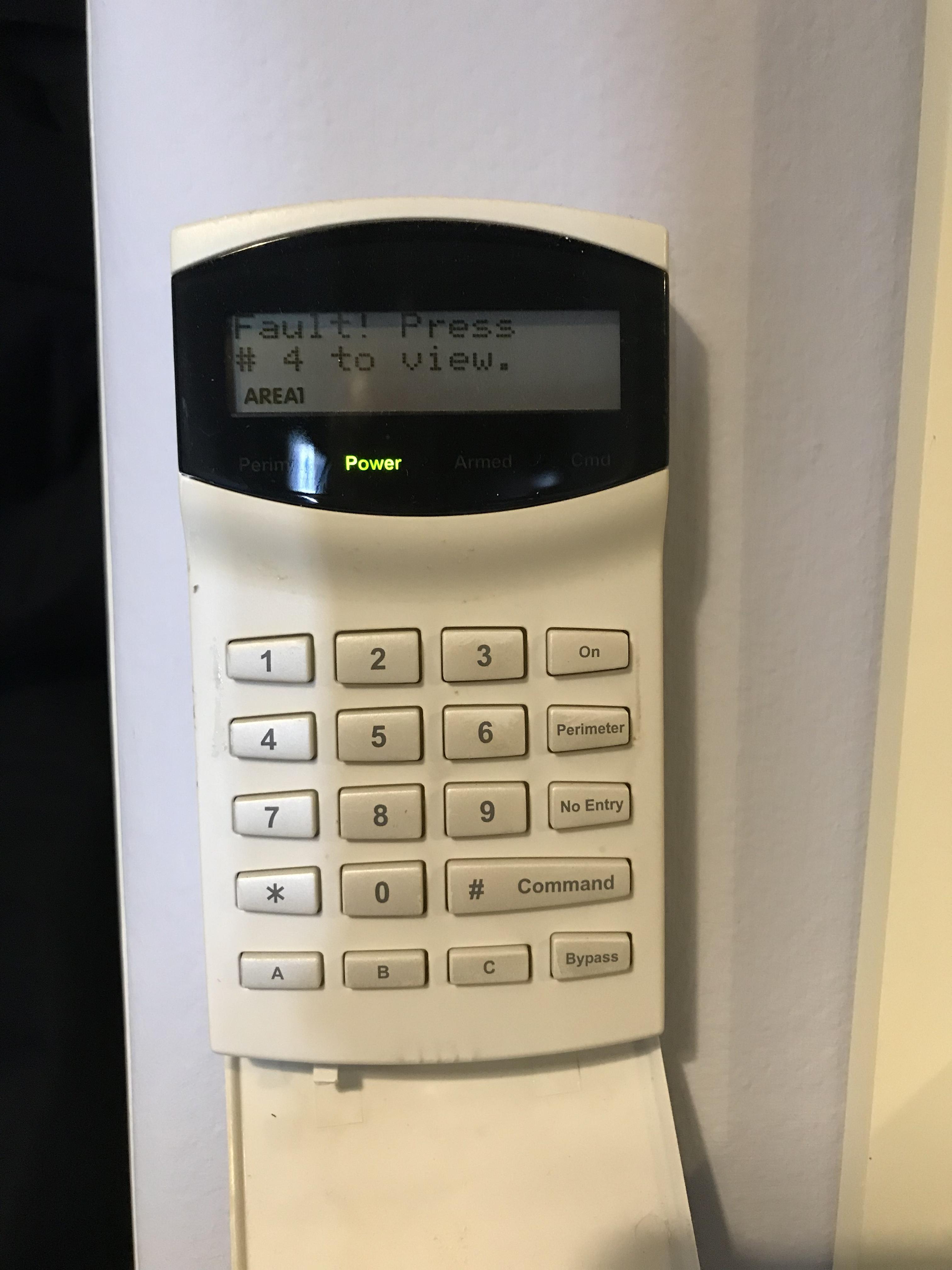
  2. Can anyone identify the model number of this alarm system? It is a Bosch system. We have a moved into a new house and this system was already installed. No user manual. We have changed the front door and we cannot get the system to recognise the connectors and doesn’t seem to be detecting the sensors.
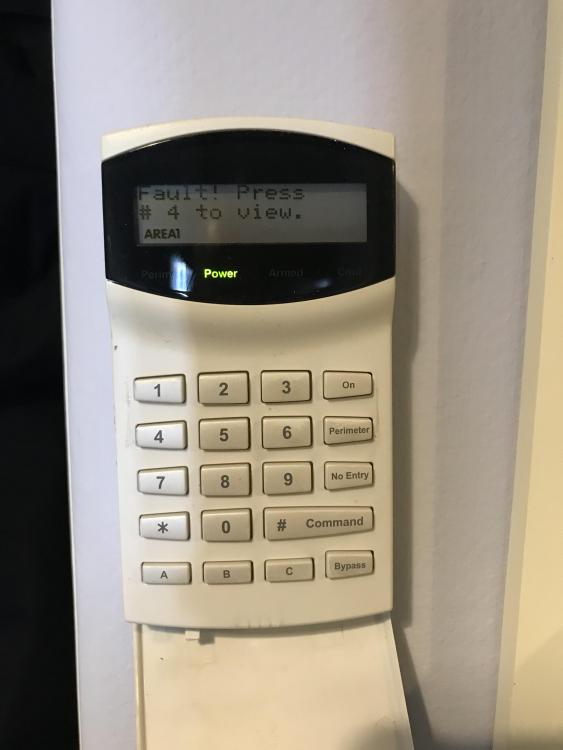
  3. Can anyone identify this alarm system? We have a moved into a new house and this system was already installed. No user manual. We have changed the front door and we cannot get the system to recognise the connectors and doesn’t seem to be detecting the sensors.
Important Information

By using this site, you agree to our Terms of Use.

Account

Navigation

Search

Search

Configure browser push notifications

Chrome (Android)
  1. Tap the lock icon next to the address bar.
  2. Tap Permissions → Notifications.
  3. Adjust your preference.
Chrome (Desktop)
  1. Click the padlock icon in the address bar.
  2. Select Site settings.
  3. Find Notifications and adjust your preference.