Skip to content
View in the app

A better way to browse. Learn more.

Security Installer Community

A full-screen app on your home screen with push notifications, badges and more.

To install this app on iOS and iPadOS
  1. Tap the Share icon in Safari
  2. Scroll the menu and tap Add to Home Screen.
  3. Tap Add in the top-right corner.
To install this app on Android
  1. Tap the 3-dot menu (⋮) in the top-right corner of the browser.
  2. Tap Add to Home screen or Install app.
  3. Confirm by tapping Install.

john.lightbody

Member
  • Joined

  • Last visited

  1. Both of them and my motorbike, how is that relevant though?! Oh wait a minute, was that an attempt at sarcasm..... What's to service on an alarm system, considering been working every night without fail for 20 years until power cut other week there....
  2. Hi, had attached unit for 20 years working well, power cut recently and when power returned alarm set off and unable to switch off with code?! Anyone have access to a user manual please for this model Challenger 5.
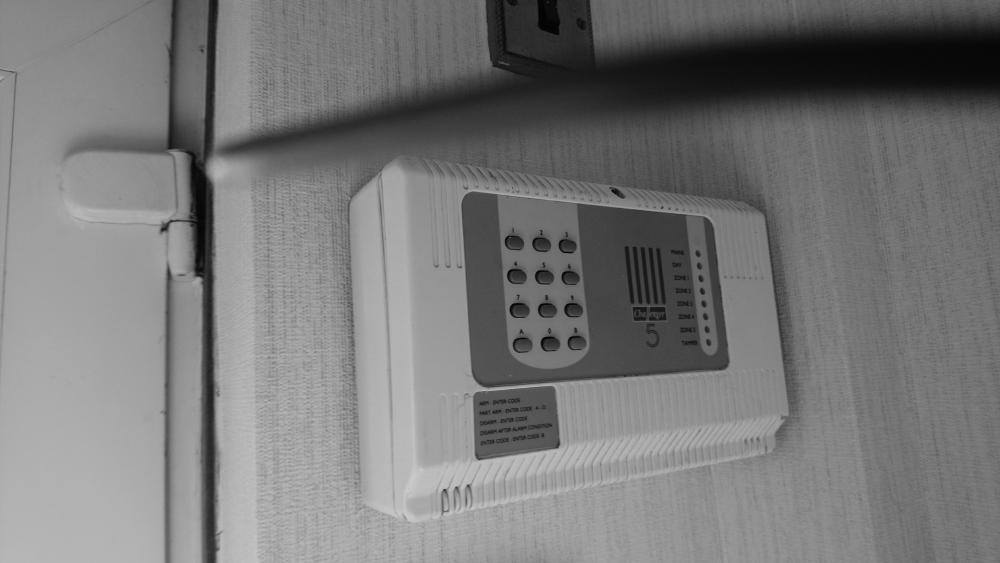
  3. Not been serviced, never had too, worked splendidly for all these years. Has had just 2 battery changes and the current one is dead, but since power cut last week once power came on it set off, code not working to turn off....
  4. Hi, have old Challenger 5 home alarm system in house, worked a treat last 20 years, power cut the other day and it's went haywire?! Code no longer works and it just sets itself off... Trying to get user manual if at all possible pls??

Important Information

By using this site, you agree to our Terms of Use.

Account

Navigation

Search

Search

Configure browser push notifications

Chrome (Android)
  1. Tap the lock icon next to the address bar.
  2. Tap Permissions → Notifications.
  3. Adjust your preference.
Chrome (Desktop)
  1. Click the padlock icon in the address bar.
  2. Select Site settings.
  3. Find Notifications and adjust your preference.