_2d2230.png)
_5a42ce.png)

Gillmstar
Newbie
-
Joined
-
Last visited
-
Haven't tried that, do you think that would potentially make it work? I'm back there tomorrow so hoping to have more of an idea to get it sorted then
-
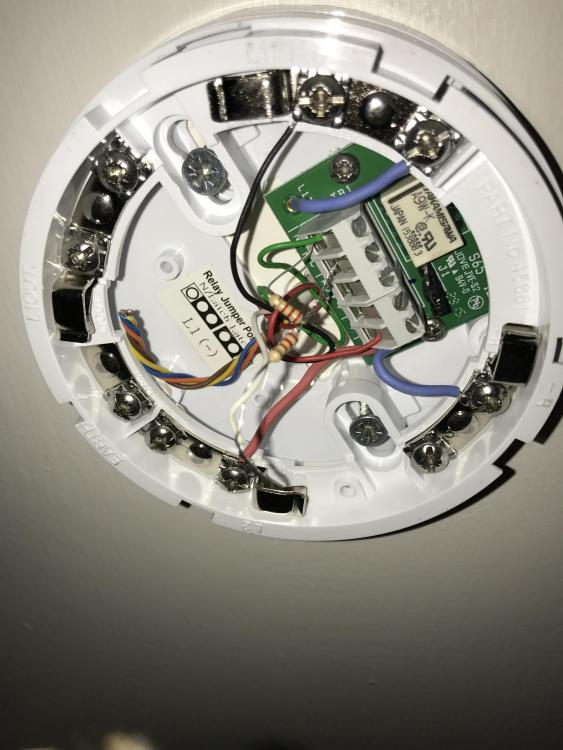
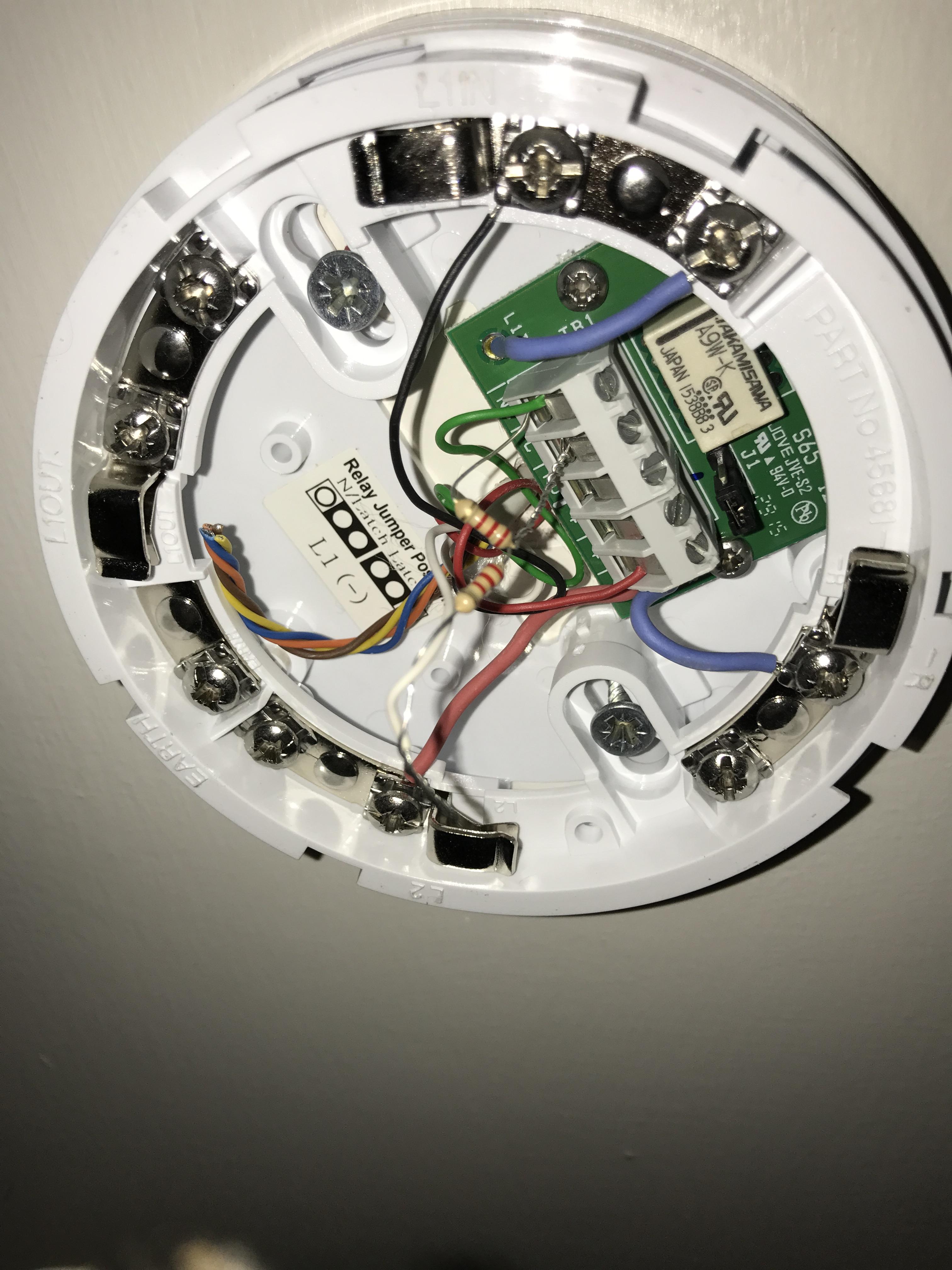
One is with the green cable which is in the first terminal on the left, the next one is the two resistors in the one terminal next to that but with no cable, and the last leg of the resistor is just soldered to the white cable that heads back to the panel, hope this makes sense, made up to have some help on it thanks
-
Hey guys an gals! I'm a security installer in the north west, having some trouble with the lightsys panel and the fire alarm aspect, using an apollo smoke, end of line, the zone is programmed as a "fire" and is not in tamper, yet when I trigger it it isn't triggering the alarm, I thought this is wired correctly but it mustn't be? It has got power and lights up but doesn't trigger the alarm. any help would be massively appreciated! Thanks people.