_2d2230.png)
_5a42ce.png)

abbz
Trade Full Member
-
Joined
-
Last visited
Everything posted by abbz
-
Last time I got hit for speeding I got a letter with time and date and a ref number to view pictures online
-
I don't mind taking the wrap for it but would be nice to know and see exactly what I've done. Last points just came off last month so had clean licence for all of 5 weeks !
-
It's my own car hence came to me.
-
Car has sat nav with speed cameras on it ..... Fat use they were
-
I've had one before with photographic evidence but not one like this before
-
Wasn't sent recorded just through normal post. If I've been caught fair enough but surely they would tell me and show me photographic evidence
-
Normally I'm aware off all the cameras around me. Can't recall seeing any on that stretch. It's definitely a mobile one as driven on same road today and no fixed ones there.
-
Don't remember seeing any camera at all.
-
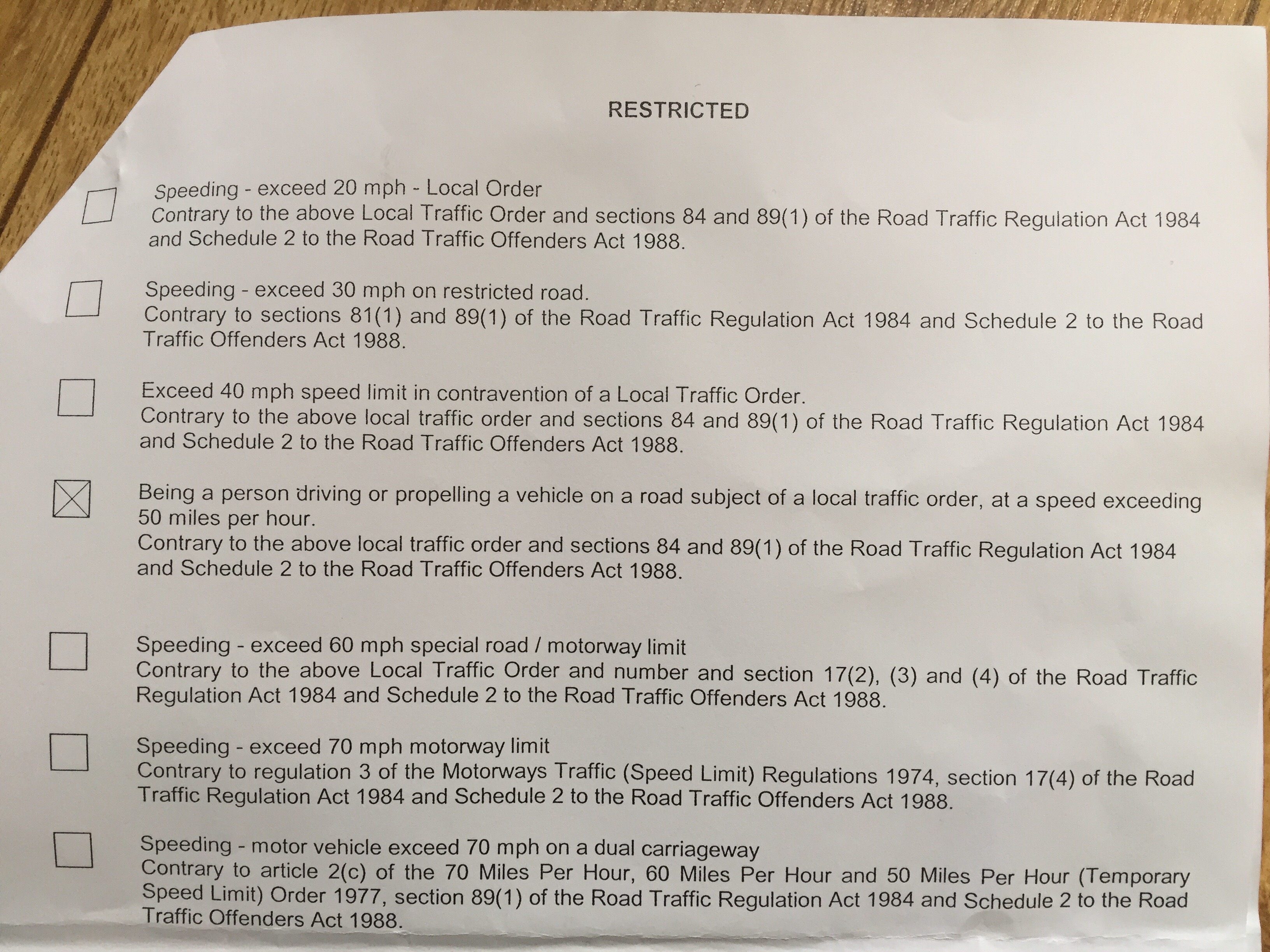
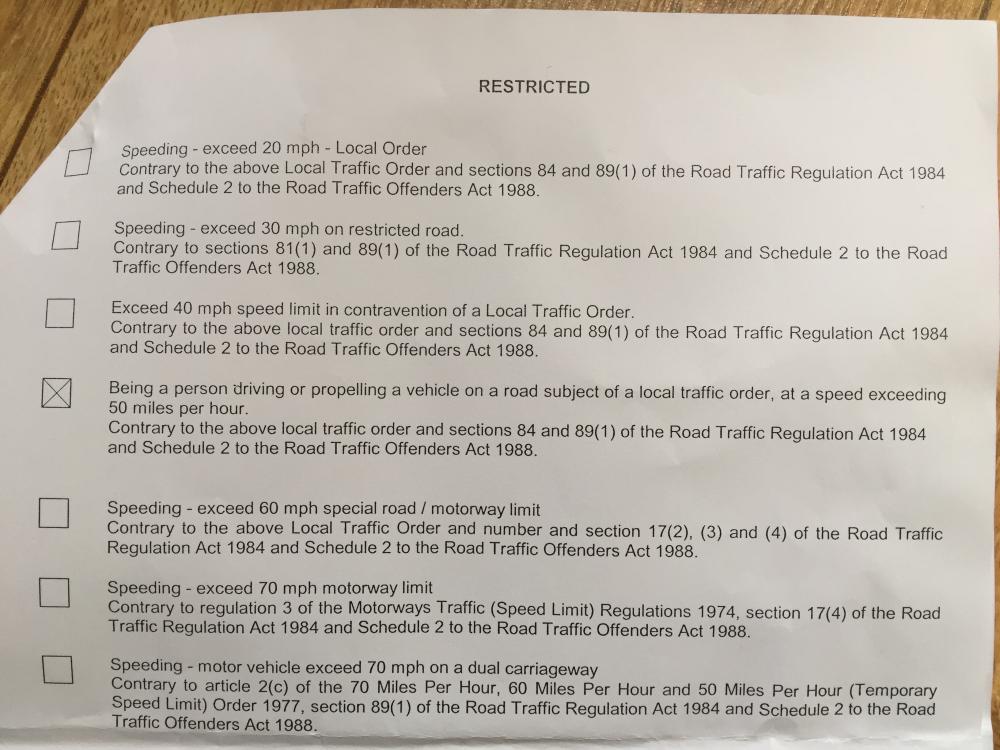
Can any of you make out what I've actually been done for ? Letter just states wants to know who was driving car and just gives the date time and road name. Doesn't give actual speed or any photo.
-
Most takeovers we do we always to get into prog mode either by list of other engineer codes or default code procedure. We rarely ever do a full default. Once in give the system a full check and test. Why would you default whole system. Surely that caused more issues to customers like having to get fob back from delivery driver etc. If it ain't broke don't fix it.