_2d2230.png)
_5a42ce.png)

Daniel G
Member
-
Joined
-
Last visited
Everything posted by Daniel G
-
Thank you for you help!!! The Keypad was not mapped. The system works fine now! Have a nice evening! Daniel
-
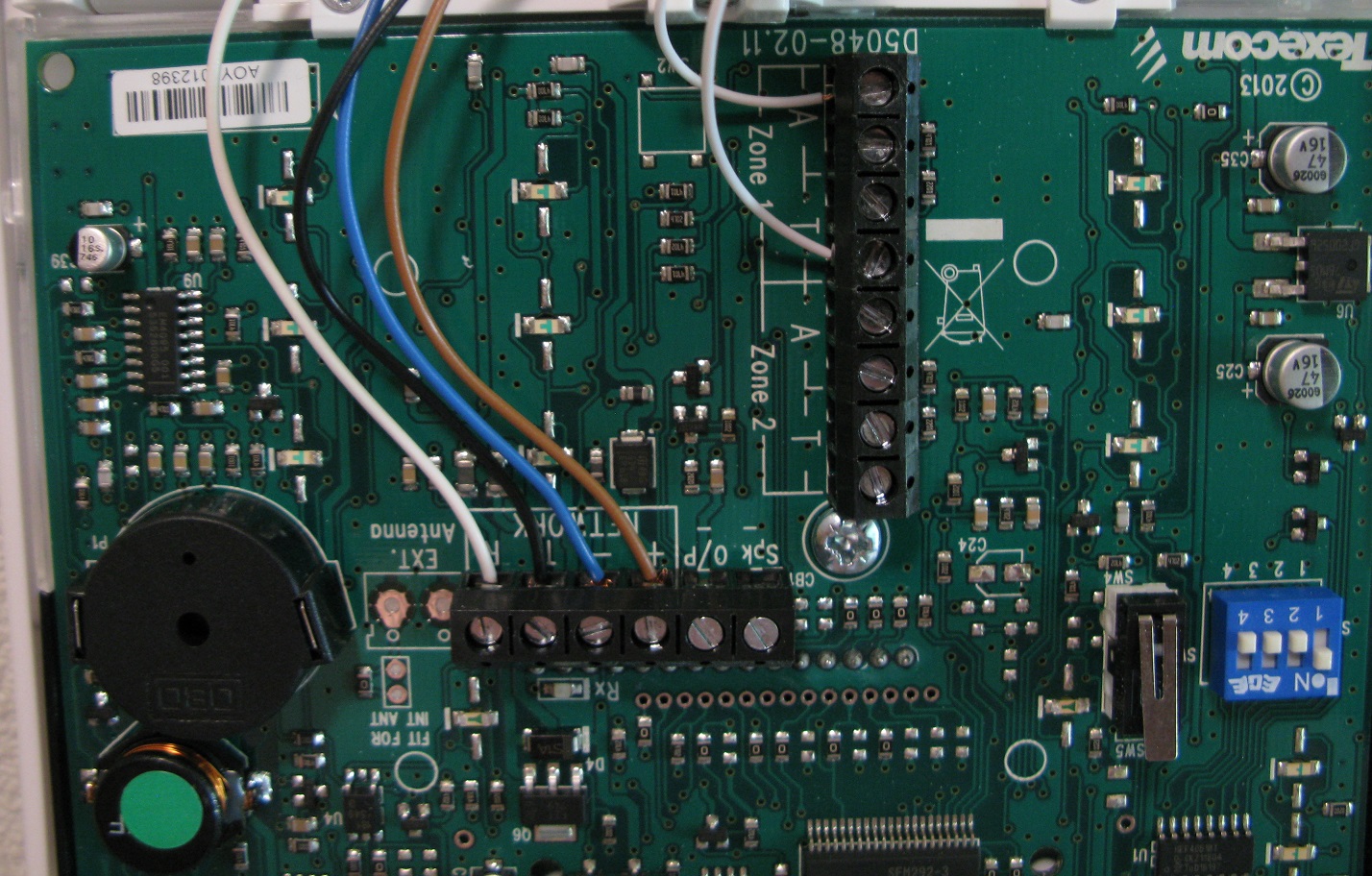
I have another Question I connect the normally close contact without tamper now on the LCDP Zone 1 Zone Wiring Setting is: Normally Closed The system don't recognize the contact. In Menue View Zone Status also not. How can I activate Zone 1 at the LCDP Or is the wiring wrong?
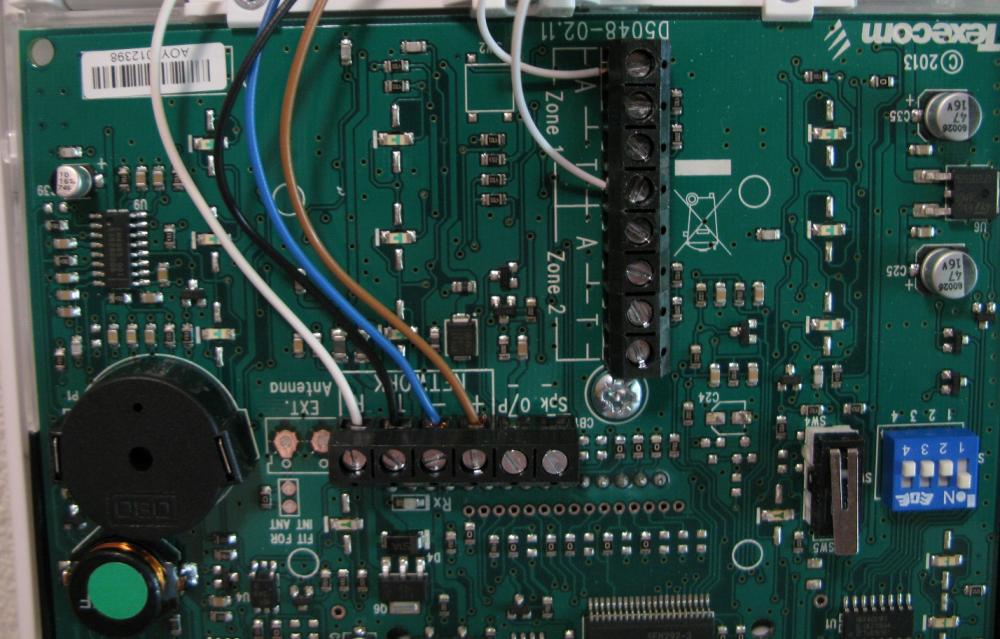
-
Thank you very much! I forgot the Confirm Device step. We have a idiom in Germany: Everyone who can read have an advantage..
-
ok.I do have this two settings. What about Zone Atributes. Do I need the them?
-
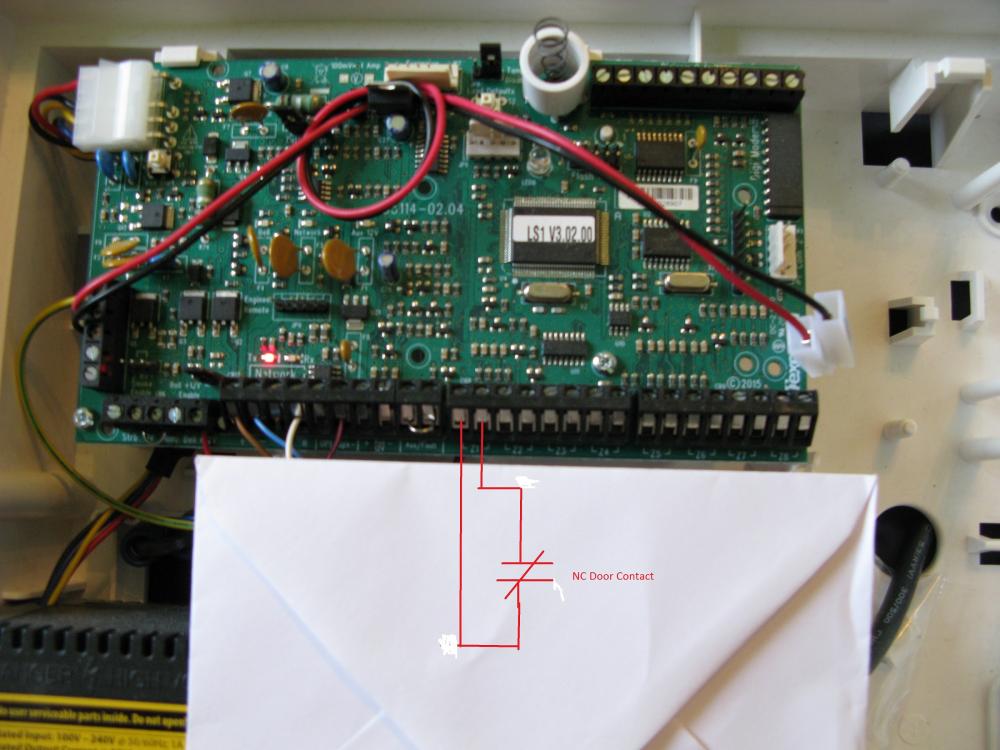
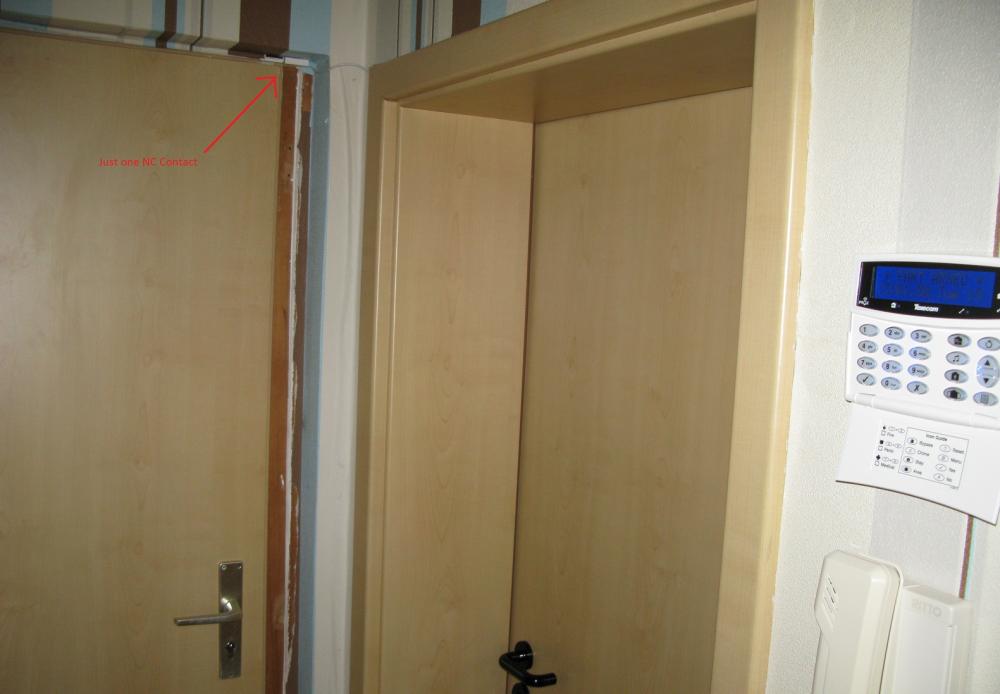
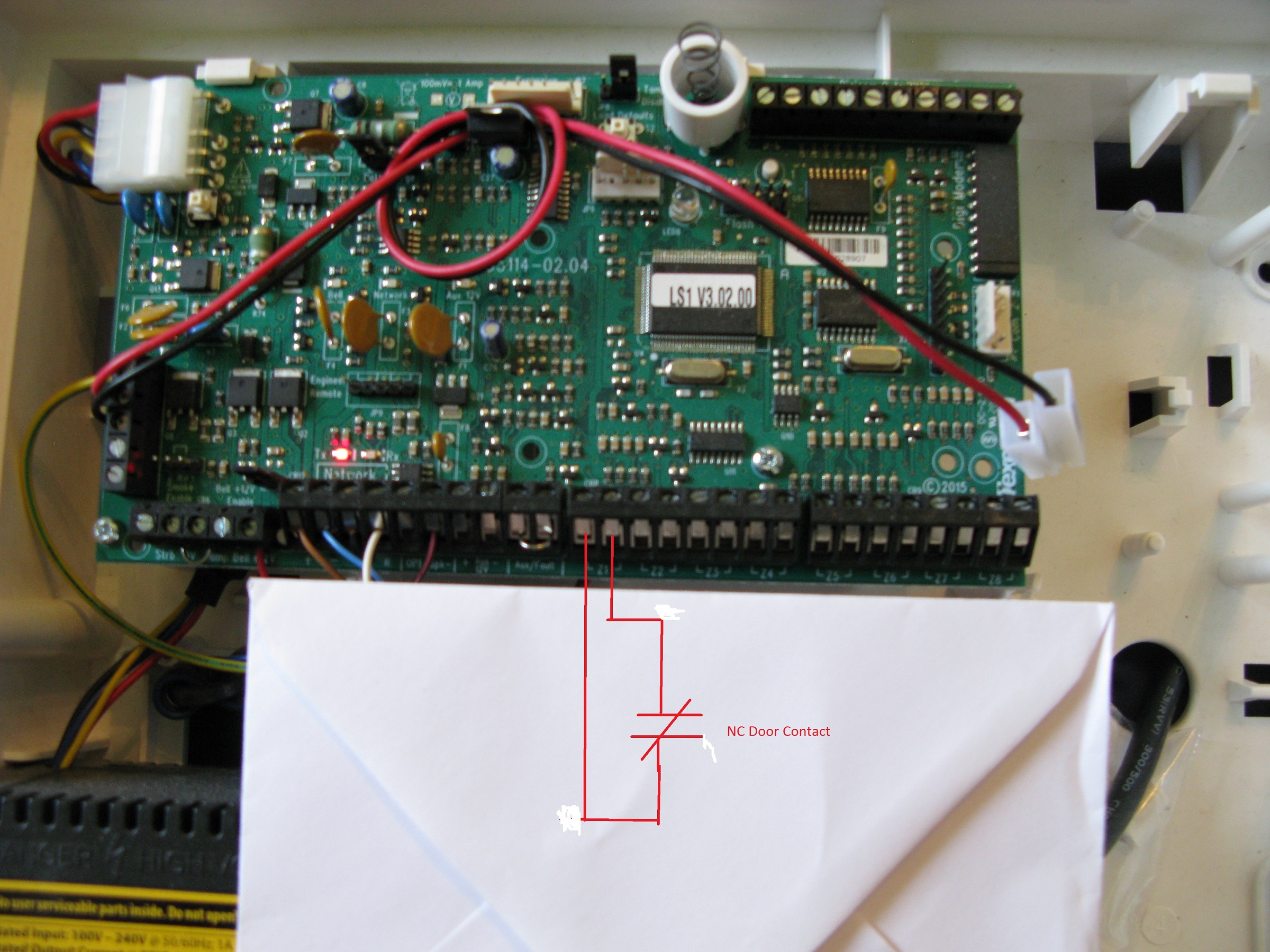
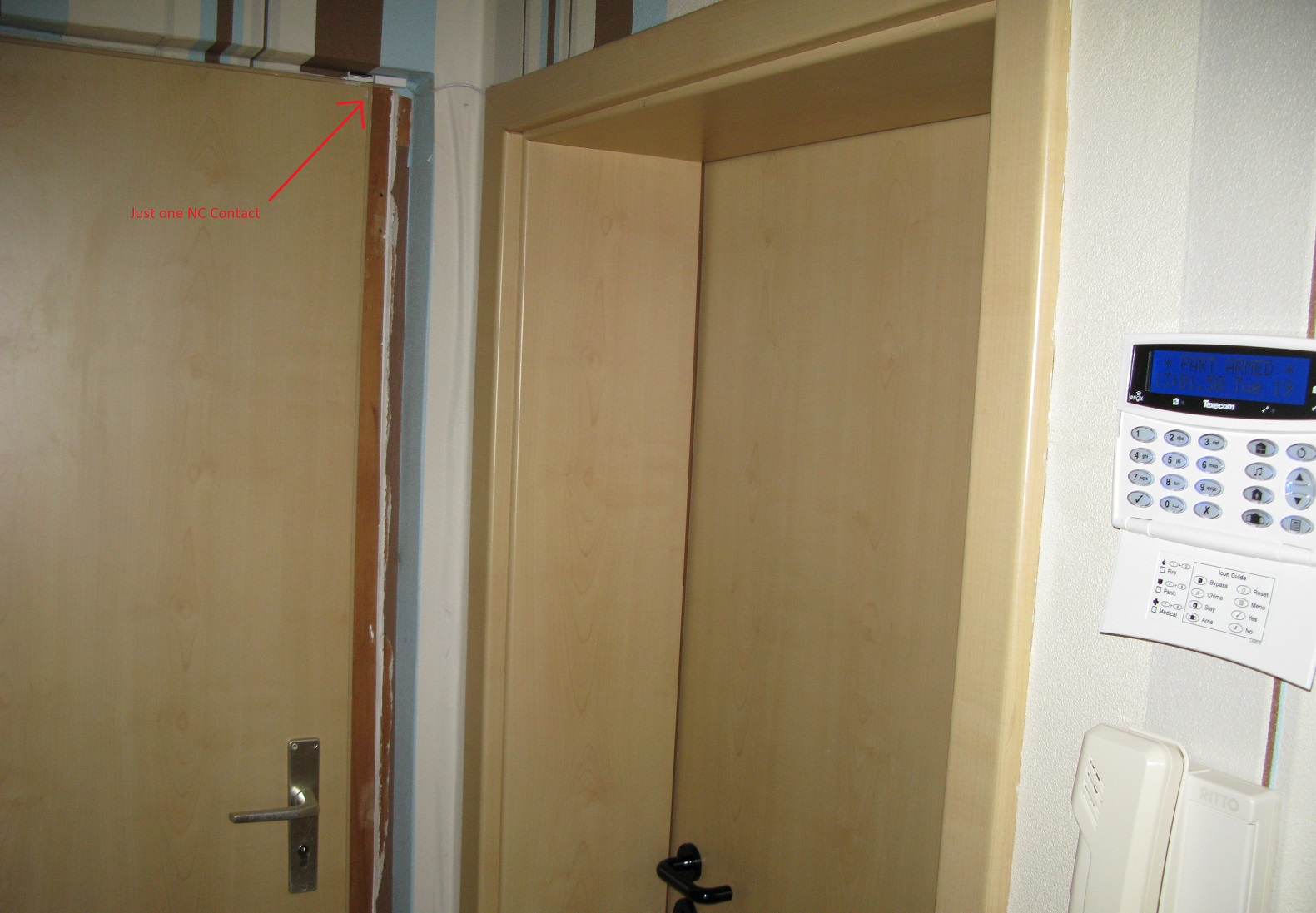
Hallo Can everyone help me with Texecom Premier Elite 24 and LCDLP Blue Keypad. I have just a flat and only one Door to secure. It`s just one NC Contact on Zone 1 connected. How shall I programming the device? And sorry for my bad english. Thank you Best Regards Daniel