

Skip to content
View in the app

A better way to browse. Learn more.

Security Installer Community

A full-screen app on your home screen with push notifications, badges and more.

To install this app on iOS and iPadOS
  1. Tap the Share icon in Safari
  2. Scroll the menu and tap Add to Home Screen.
  3. Tap Add in the top-right corner.
To install this app on Android
  1. Tap the 3-dot menu (⋮) in the top-right corner of the browser.
  2. Tap Add to Home screen or Install app.
  3. Confirm by tapping Install.

Fixercool

Member
  • Joined

  • Last visited

Everything posted by Fixercool

  1. It’s ok. Been told by two different Plan access control engineers that if LCD screen not responding as it should then it means board is blown. So getting new panel and trying to get it sorted. Thanks for replying
  2. Yes, I know that it’s not easy to get their tech support. Our company is too small for them ?.
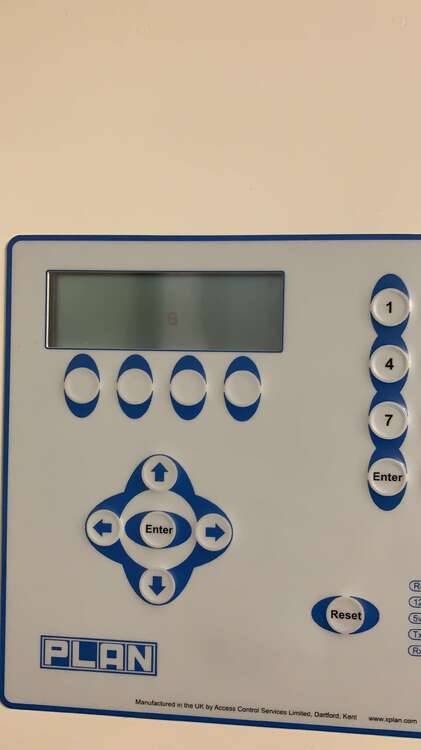
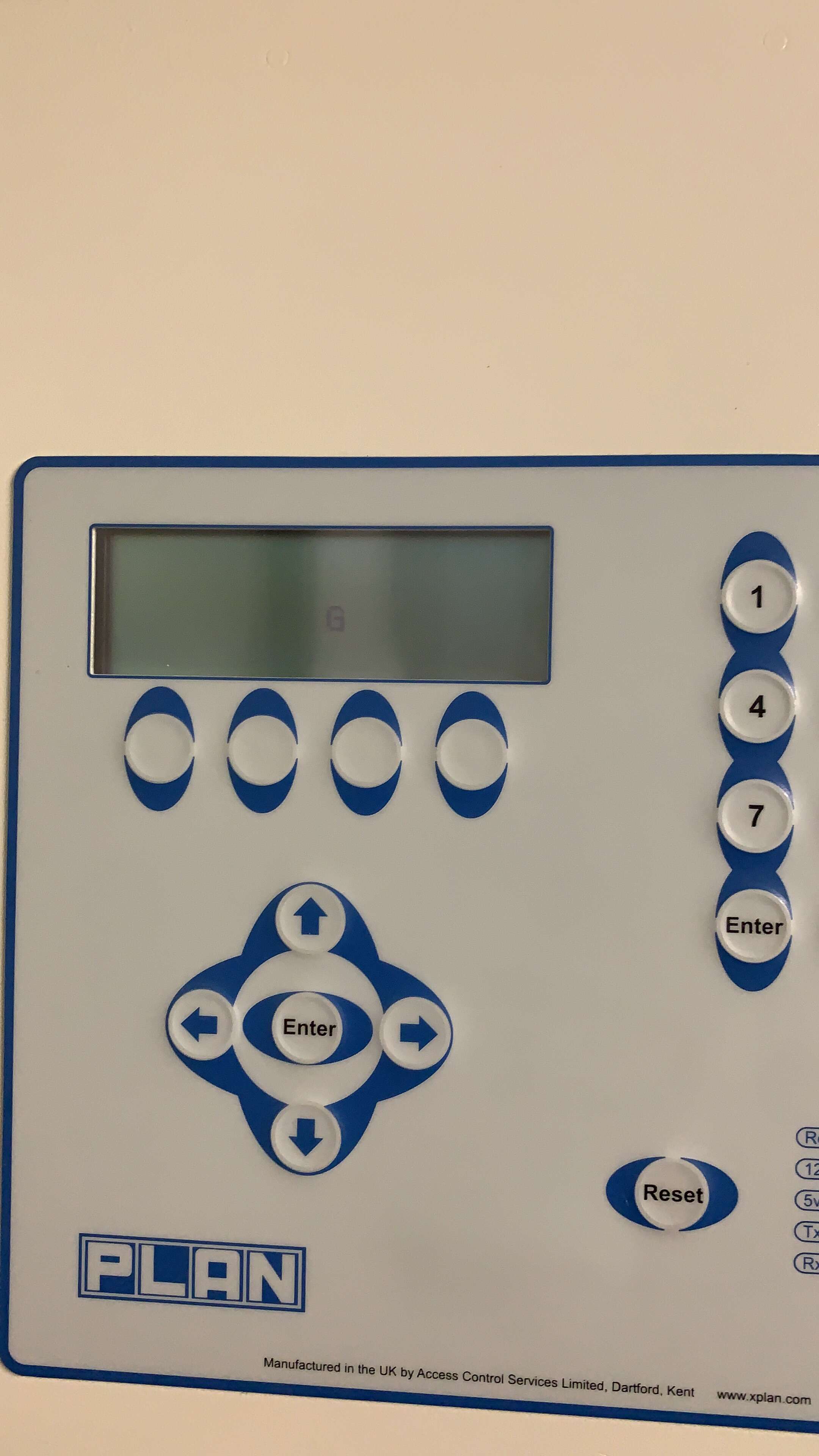
  3. Hi, I’m hoping if someone can help me with Xplan400 panel. Suddenly went offline, readers on but not responding and RTEs not working. LCD screen only shows letter G. Any idea what it can be or how to reset the panel ? Appreciate if someone can help with advise.
Important Information

By using this site, you agree to our Terms of Use.

Account

Navigation

Search

Search

Configure browser push notifications

Chrome (Android)
  1. Tap the lock icon next to the address bar.
  2. Tap Permissions → Notifications.
  3. Adjust your preference.
Chrome (Desktop)
  1. Click the padlock icon in the address bar.
  2. Select Site settings.
  3. Find Notifications and adjust your preference.