_2d2230.png)
_5a42ce.png)

DARREN1
Member
-
Joined
-
Last visited
Everything posted by DARREN1
-
Thanks guys, appreciate your swift response. Going to try and fins a manual for this piece of rubbish. Thanks again 👍
-
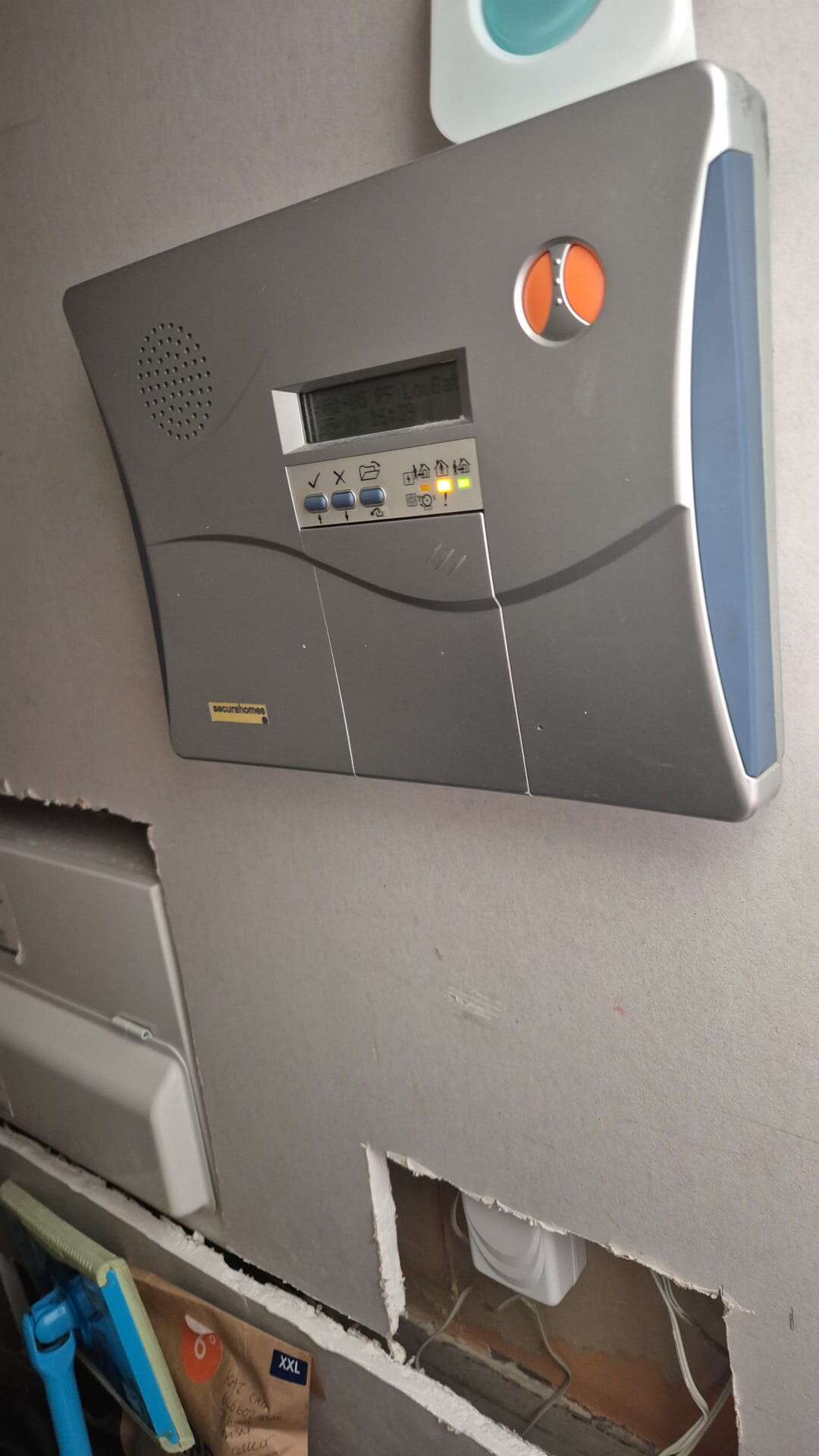
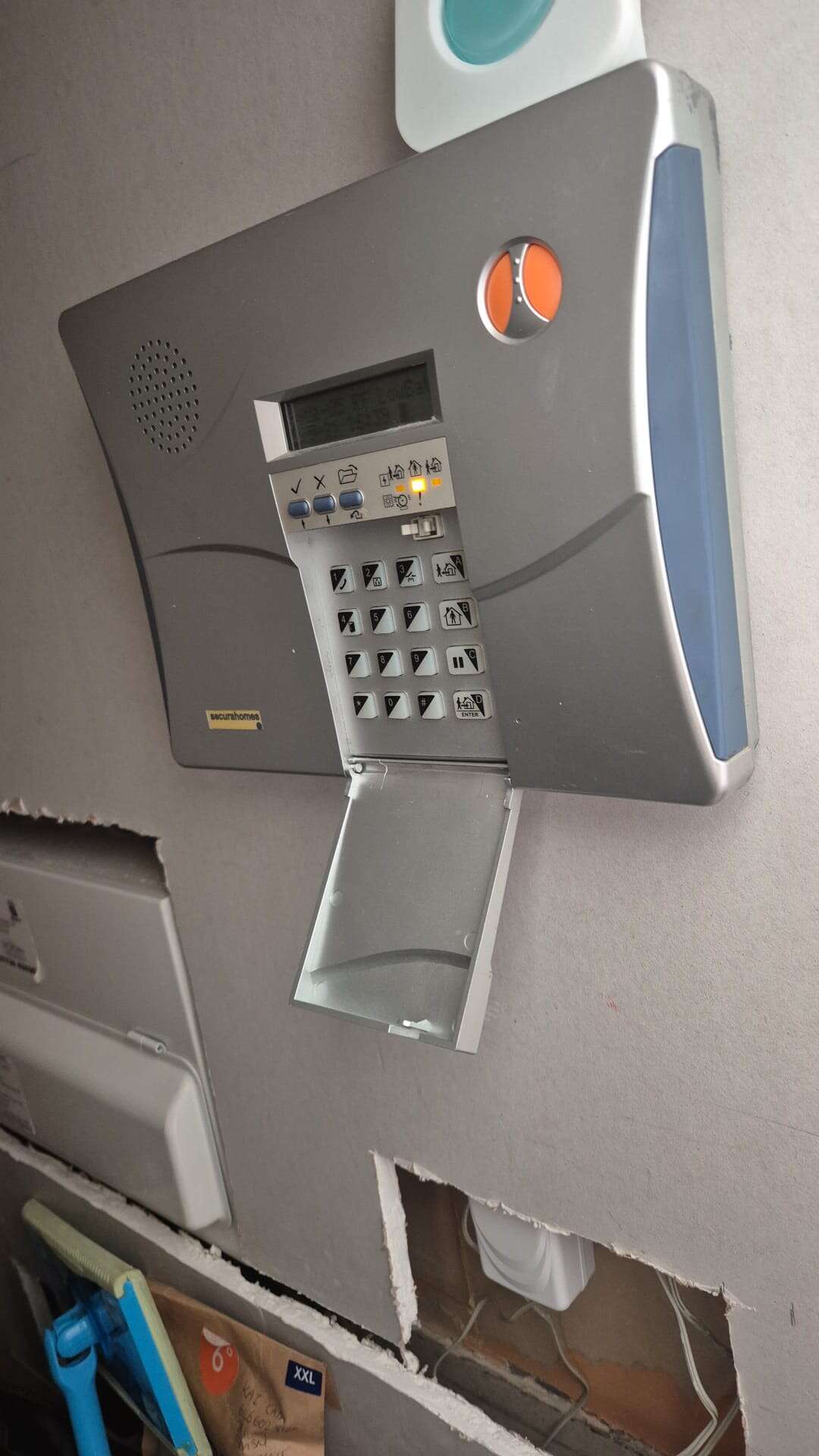
Anyone on here recognise this panel and where I can get the installation manual from please, engineer codes supplied do not work!!! Surprising. Any assistance appreciated
-
Hi all, looking for a security engineer in the Sheffield area. Intruder/cctv/access (texecom/galaxy/paxton and hikvision) Installs and service work. Get in touch for further details.
-
Thanks guys, appreciate your thoughts but all thoroughly checked before asking for assistance. NOW SOLVED!! monitoring station!! Hours of torture but now resolved. Thanks for the input though. Cheers.
-
Sean, can you send me your contact details please.
-
Hi Sean, have you managed to 3any work? Can you send me your email? Thanks
-
Hi all, I've got a com ip which has been working perfectly until now. NO SIGNALS at all being sent to the monitoring station, fitted a new com ip and reprogrammed all settings, cross checked settings with other working com ISP's that are still signalling and all correct. Texecom tech have no idea at the moment. Anyone else having any issues with these com ip modules. If anyone has any fixes for this I would appreciate any replies. Thanks in ad ance.
-
Hi all, looking for a subby with experience instaling/maintaining texecom. Extra work means I need more engineers. If anyone is interested then get in touch with me. Let me know rates and experience.