

Skip to content
View in the app

A better way to browse. Learn more.

Security Installer Community

A full-screen app on your home screen with push notifications, badges and more.

To install this app on iOS and iPadOS
  1. Tap the Share icon in Safari
  2. Scroll the menu and tap Add to Home Screen.
  3. Tap Add in the top-right corner.
To install this app on Android
  1. Tap the 3-dot menu (⋮) in the top-right corner of the browser.
  2. Tap Add to Home screen or Install app.
  3. Confirm by tapping Install.

bobmccall

Newbie
  • Joined

  • Last visited

Everything posted by bobmccall

  1. Thanks very much everyone. I've been on to Texecom and they've sent me an install guide, so all being well, I can get it up and running again. Thanks!
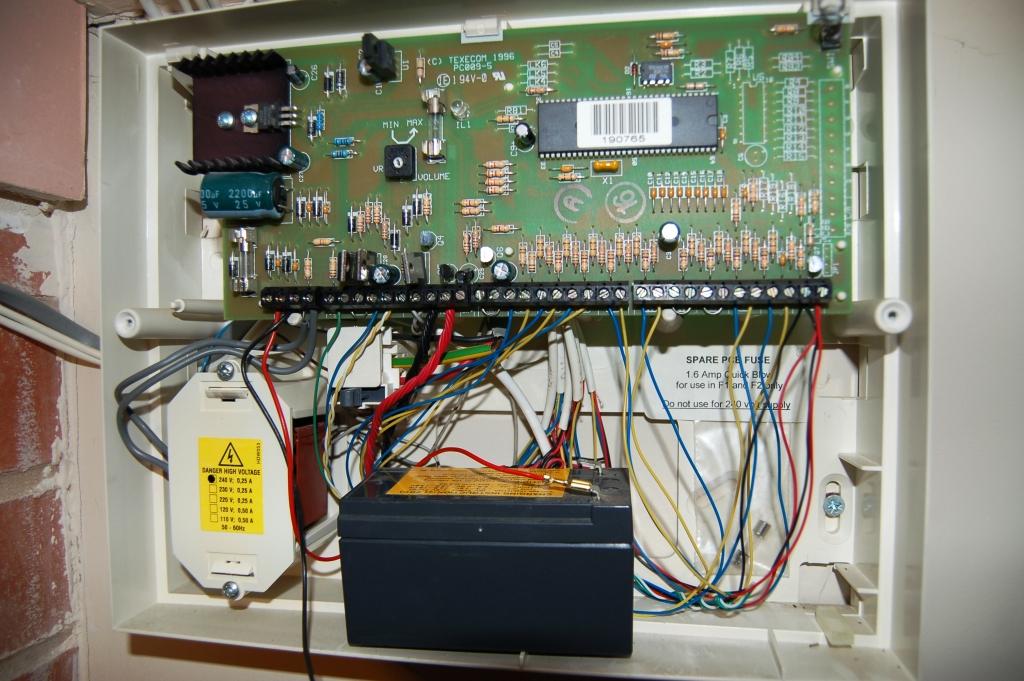
  2. The RKP looks exactly like a standard Texecom Veritas RKP. I'm guessing the unit is the predecessor to the VR8 - whatever that was?
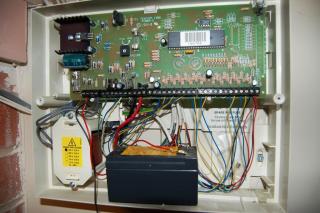
  3. Hello, I've just moved into a new house and need to replace one of the detectors and add a second RKP. I thought I had a Vertitas R8 (which I'm quite familiar with), but when I removed the cover, it seems to be something else, probably older. If I can identify what I've got, I can probably find a manual and program it how I want it - otherwise, I'll have to rip it out and put a new VR8 in. Any idea what I've got? Pic attached. Thanks for any help!!!
Important Information

By using this site, you agree to our Terms of Use.

Account

Navigation

Search

Search

Configure browser push notifications

Chrome (Android)
  1. Tap the lock icon next to the address bar.
  2. Tap Permissions → Notifications.
  3. Adjust your preference.
Chrome (Desktop)
  1. Click the padlock icon in the address bar.
  2. Select Site settings.
  3. Find Notifications and adjust your preference.