_2d2230.png)
_5a42ce.png)

Naqraf
Newbie
-
Joined
-
Last visited
-
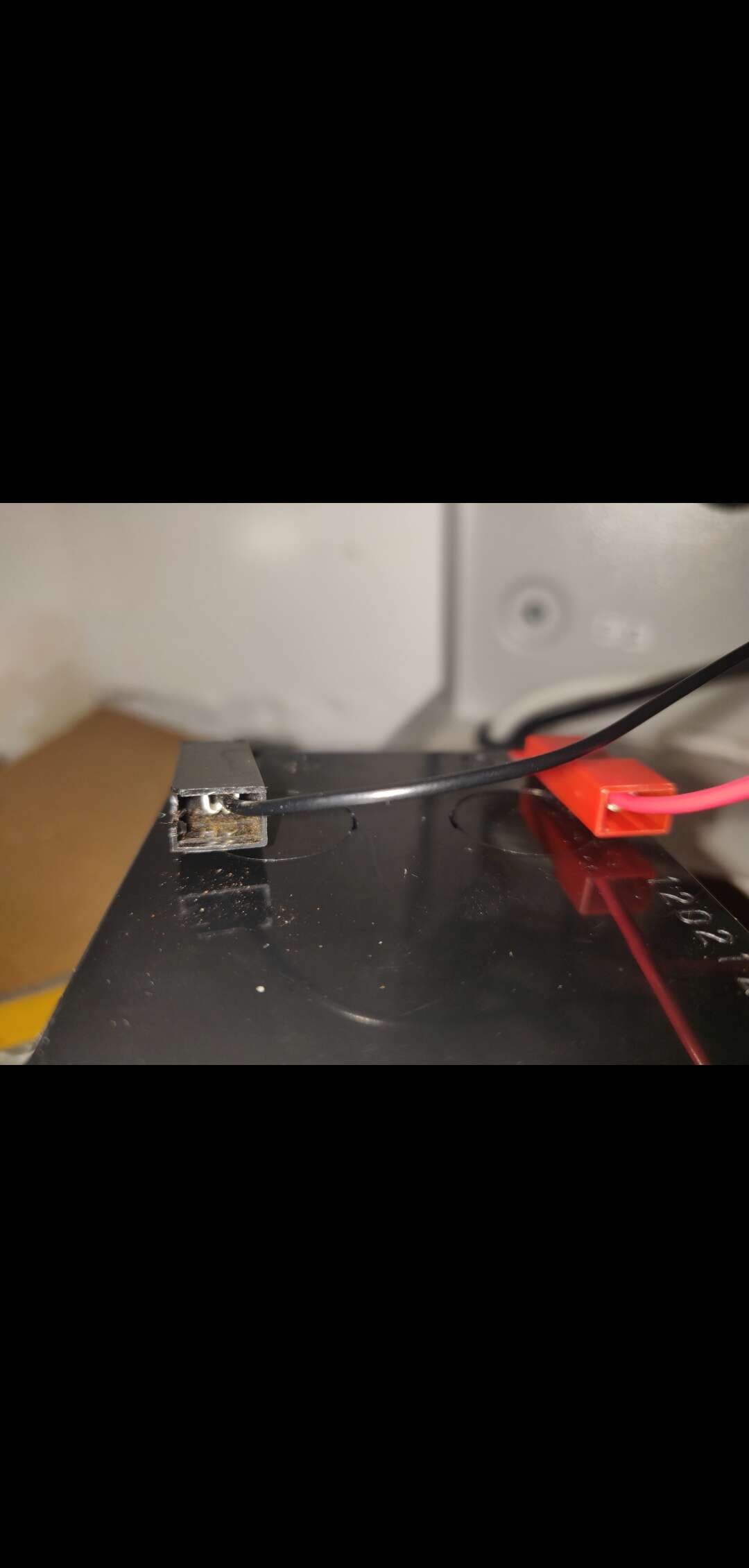
I managed to get it off... admittedly I cracked the insulation cover off and you were right there was no locking tab. So I have put electrical tape to insulate it - that should be ok? The alarm seems fine and I didn't require any engineer code - but the key fobs I have no longer work......
-
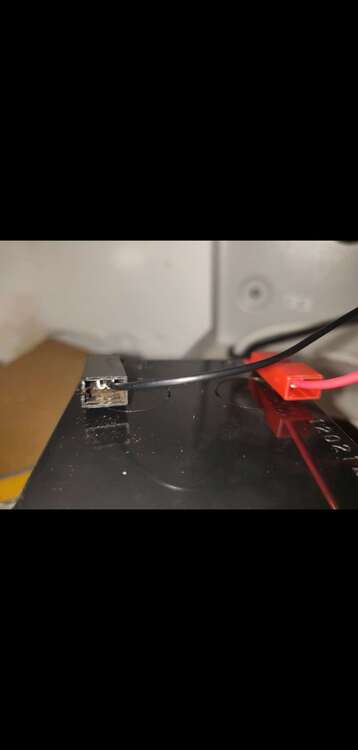
It's an absolute nightmare! I can feel the tab of the spade is locked in but I can't find where it is....I think the spade is fine, it hasn't been wielded it's the locking tab it seems impossible to flatten it. Do you think if I crack the plastic open - any issues?
-
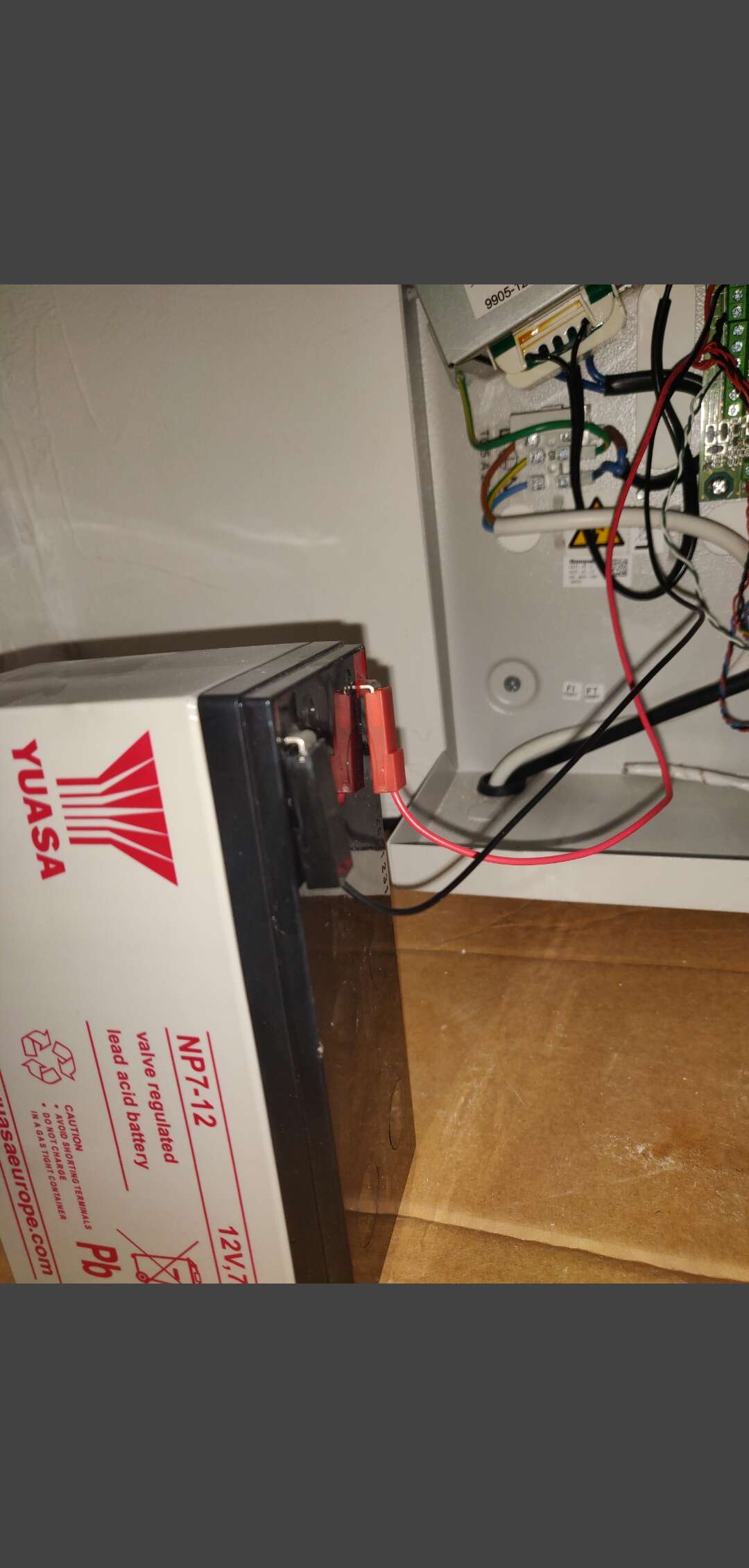
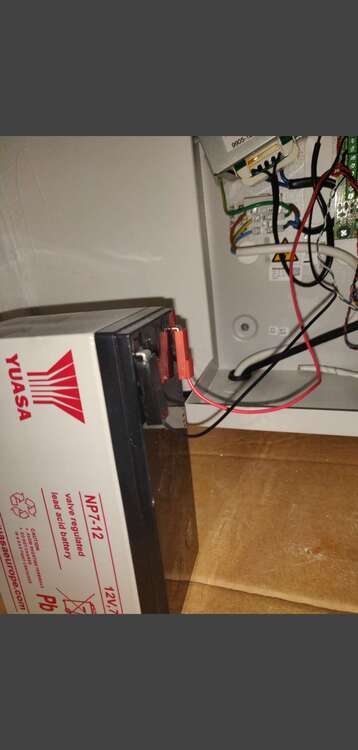
Thanks for the reply. I have found the battery required but for the life of me how do I remove the spades as they are locked in ...
-
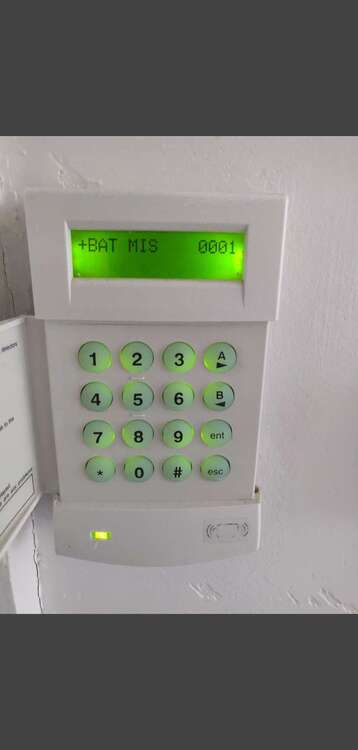
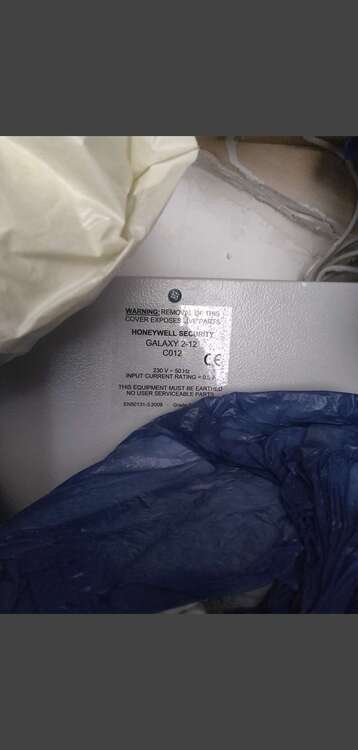
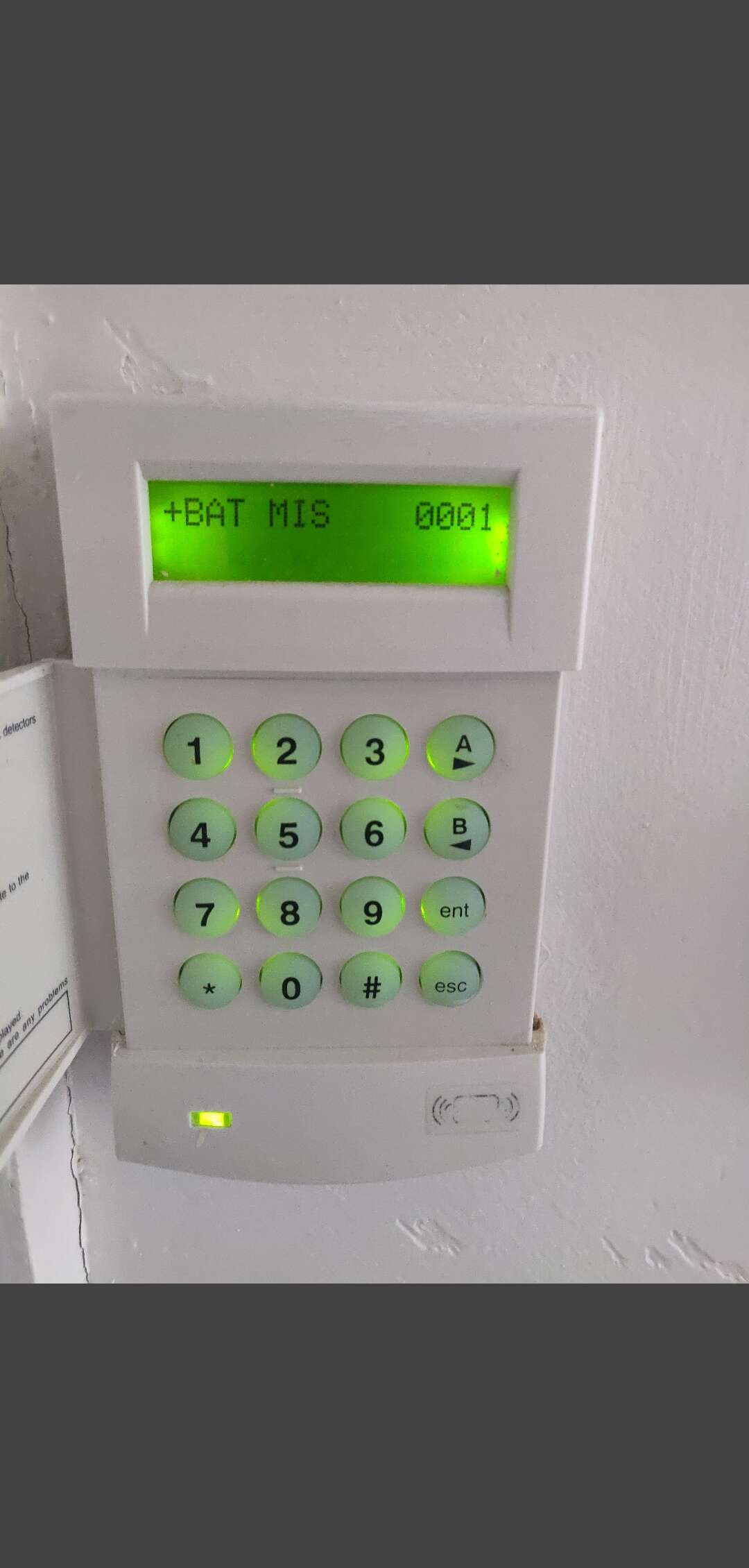
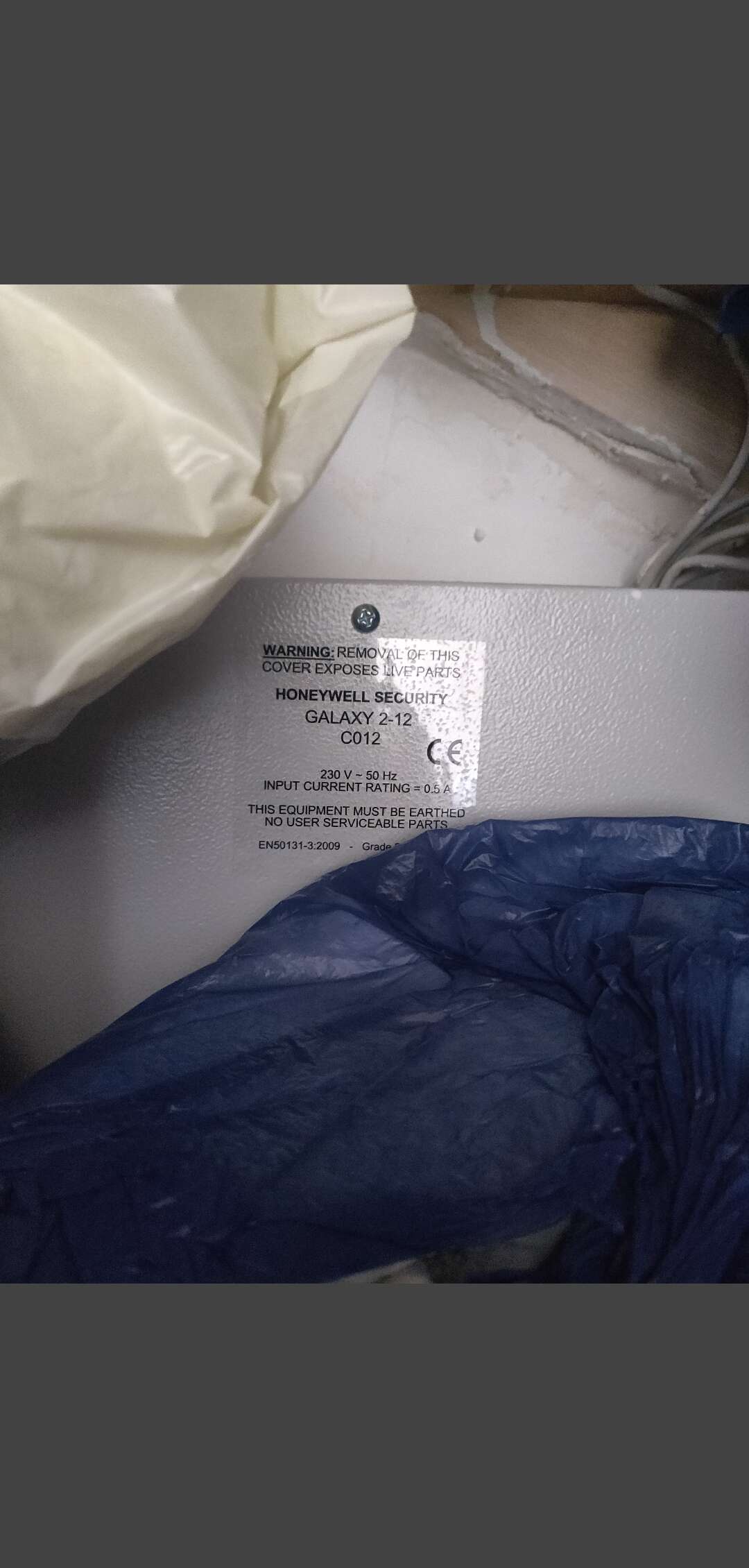
Hi all, My house alarm is continuously beeping everyday at 2pm which I reset with the user code. I can assume the battery is the issue, in the control panel which is Honeywell security Galaxy 2-12. Can someone please help with the following: 1) Which battery do I require to purchase 2) Do I need an engineer code for anything or does the user code I use be enough? 3) I saw video of replacing the battery and it seems like all it requires is clipping and unclipping the battery - however when I switch the mains off the alarm is still on, does that mean it should still be safe as long as the red and black obviously don't touch. Thanks guys