_2d2230.png)
_5a42ce.png)

Adrian12
Newbie
-
Joined
-
Last visited
-
Hi all i did what Peter James said put green cable in terminal 7 and spliced yellow & blue together system back up and running thanks
-
You superstar!
-
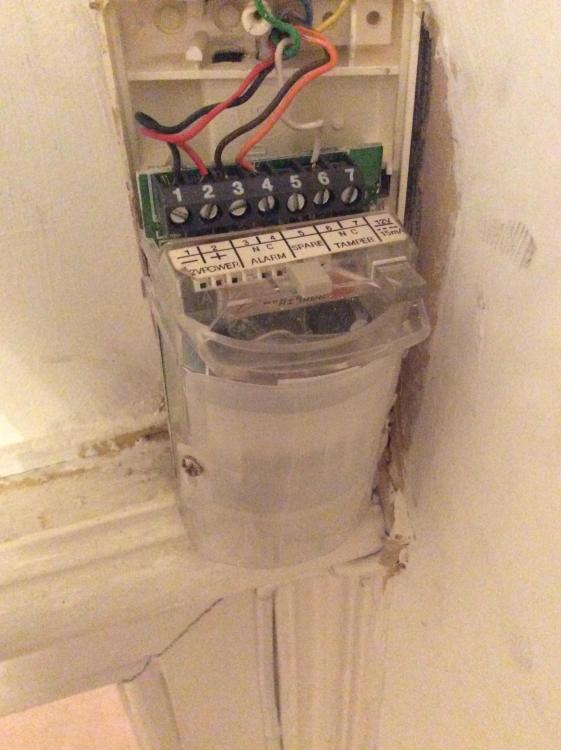
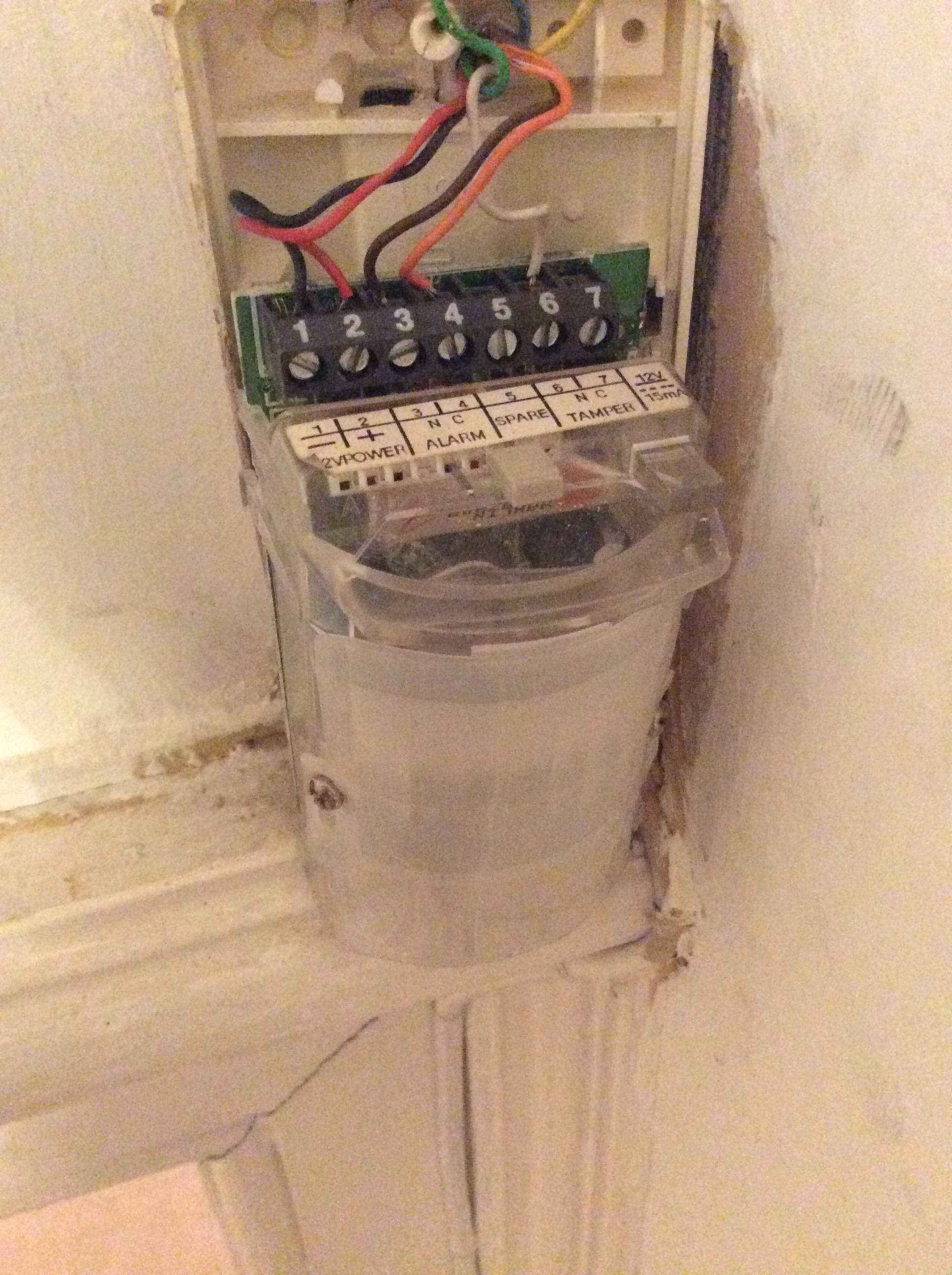
Hope someone can help I was getting some work done in my kitchen and found a loose white cable that didn't go anywhere so I traced it back to the wall and cut it guess what the alarm went off! I traced the other end of the cable and turns out it went into a pir sensor in another room the loose end of the cable I can now only assume went to a sensor for the back door that end of the cable must of had all 8 cables twined into one as only one cable was sticking out i thought the simplest thing was to disconnect the cut cable from the pir sensor and the alarm would work again. The problem I have as picture shows is I have 3 cables left but only 2 terminals left. The yellow, blue and green left were twined together with cable I cut and removed and were not wired to any of the terminals like the rest of the cables I have a optima xl6 alarm and although I can disable the alarm with the code one disabled the panel is unresponsive and I can't set the alarm I know I'm an idiot but could some one advise what to do with the 3 remaining cables to get the alarm working again Many thanks